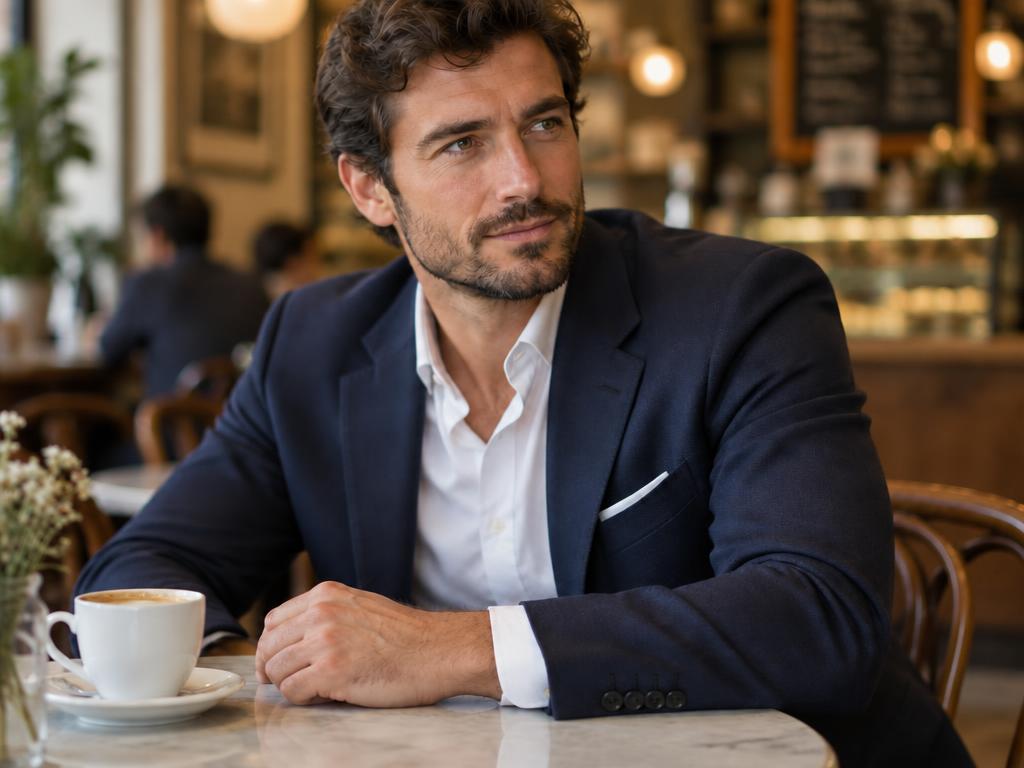
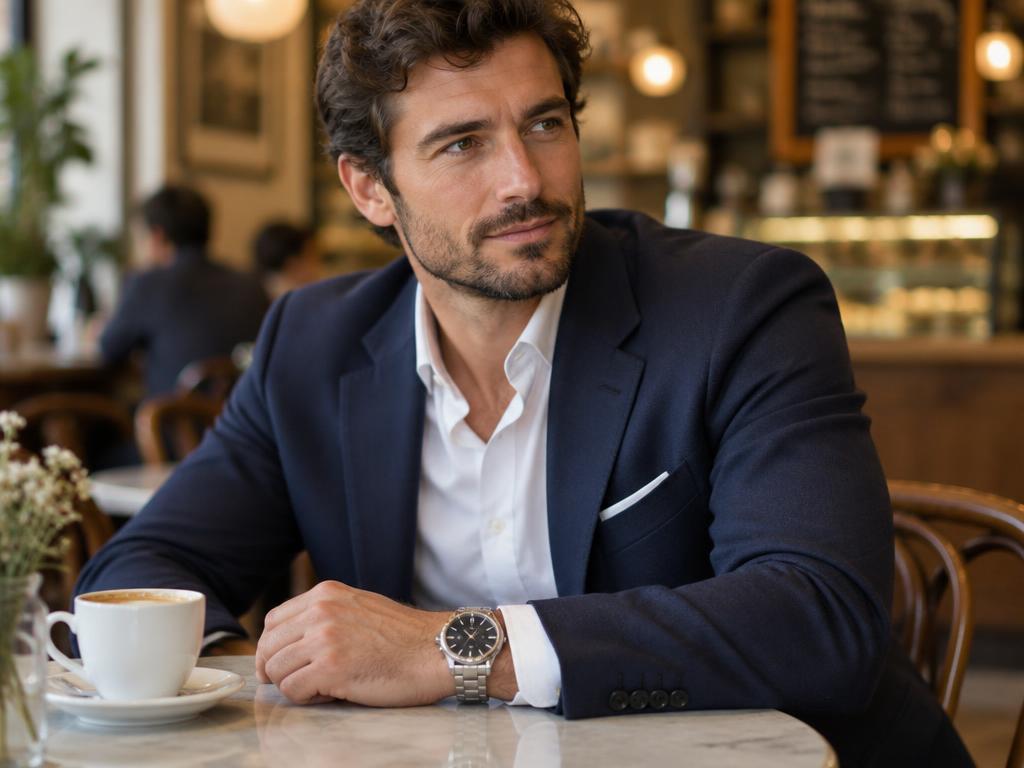
BeforeAfter
Object removal
“Remove the watch from his left wrist and restore natural skin and shirt cuff there. Keep everything else — pose, clothes, background, lighting — exactly unchanged.”
Powered by ChatGPT Images 2.5 · Flare
Upload one photo, type the edit in plain English — or mark the exact spot with an annotation. No layers, no masks, no learning curve, and no software to install. Remove objects, swap backgrounds, restyle, retouch — in seconds.
Free credits on sign-up · No credit card required
Your next image starts here
Browse promptsEvery card drops a proven instruction straight into the editor above. Fill in the bracketed part and go — or use it as a starting point and rewrite it your way.
Drag the handle on each pair. Every result came from this editor, unretouched — the exact instruction used is printed under it, so you can steal it for your own photo.
“Remove the watch from his left wrist and restore natural skin and shirt cuff there. Keep everything else — pose, clothes, background, lighting — exactly unchanged.”
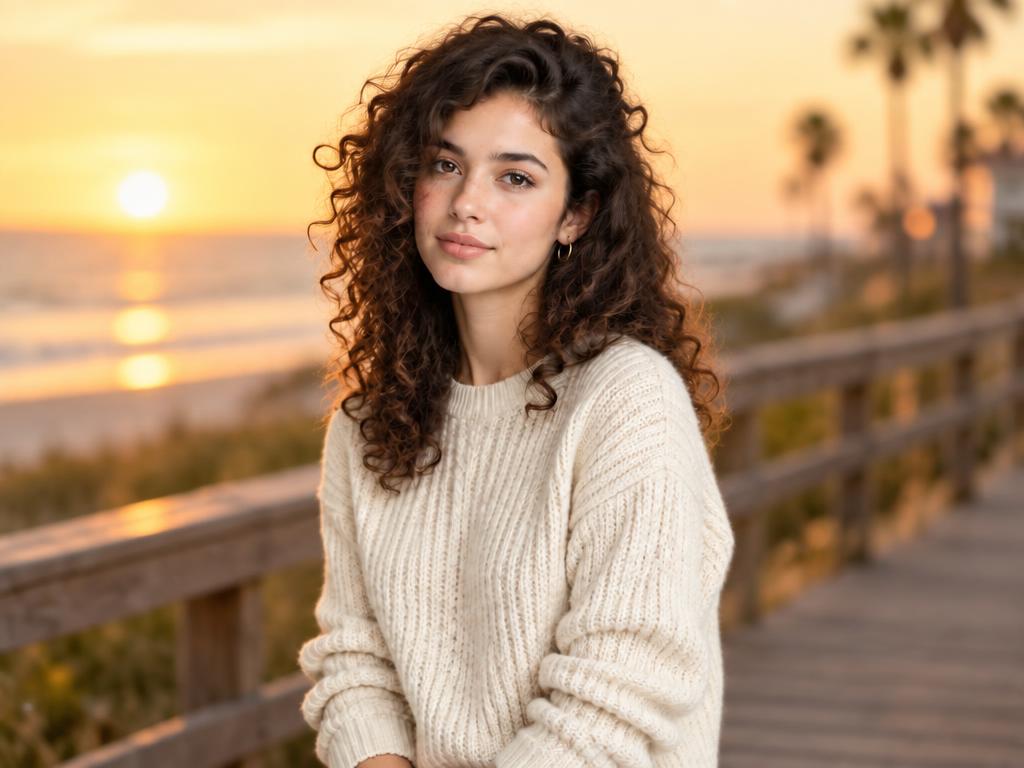
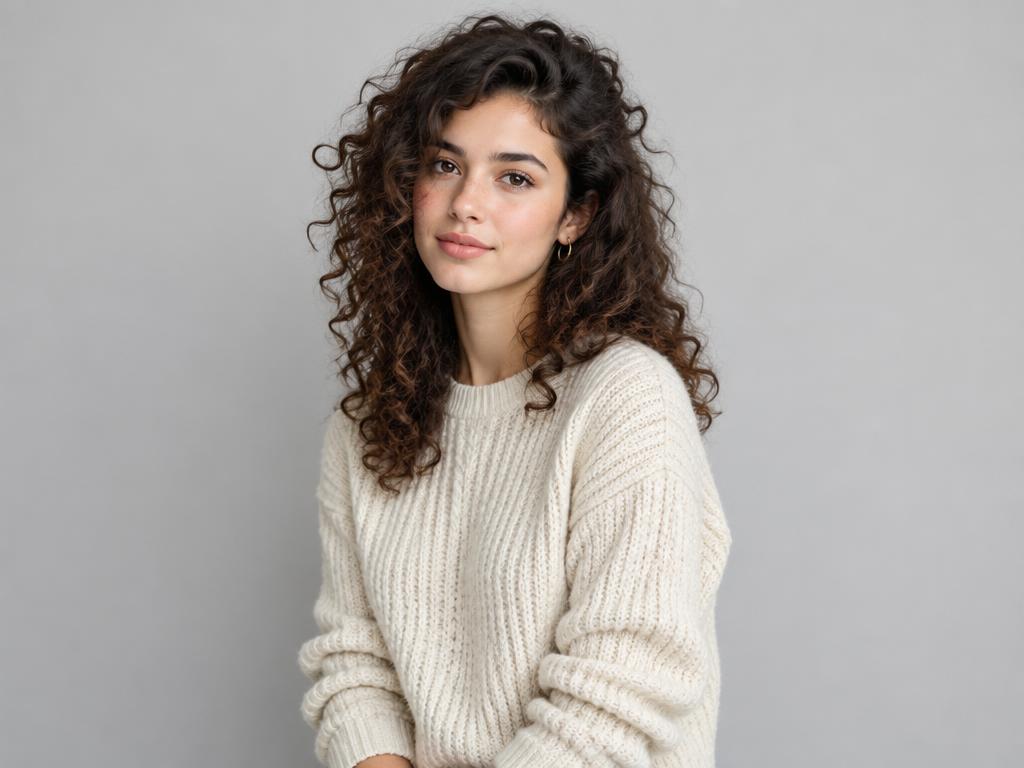
“Replace the background with a golden-hour beach boardwalk, softly blurred. Keep the woman, her pose, her sweater, and the lighting on her exactly unchanged.”
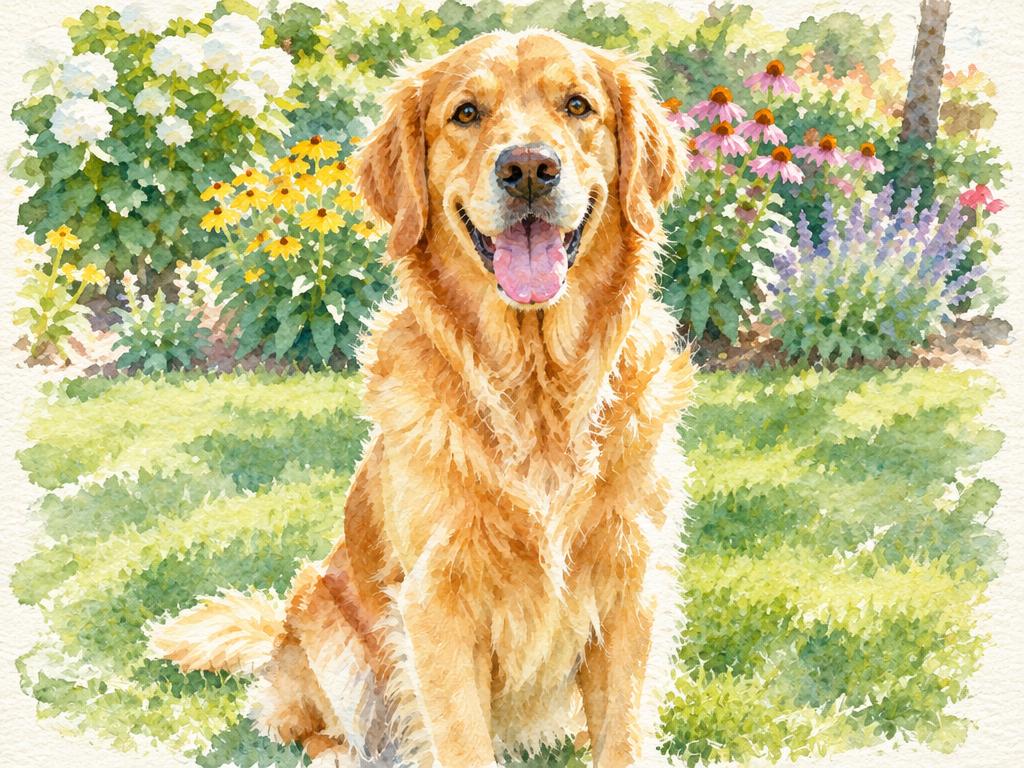
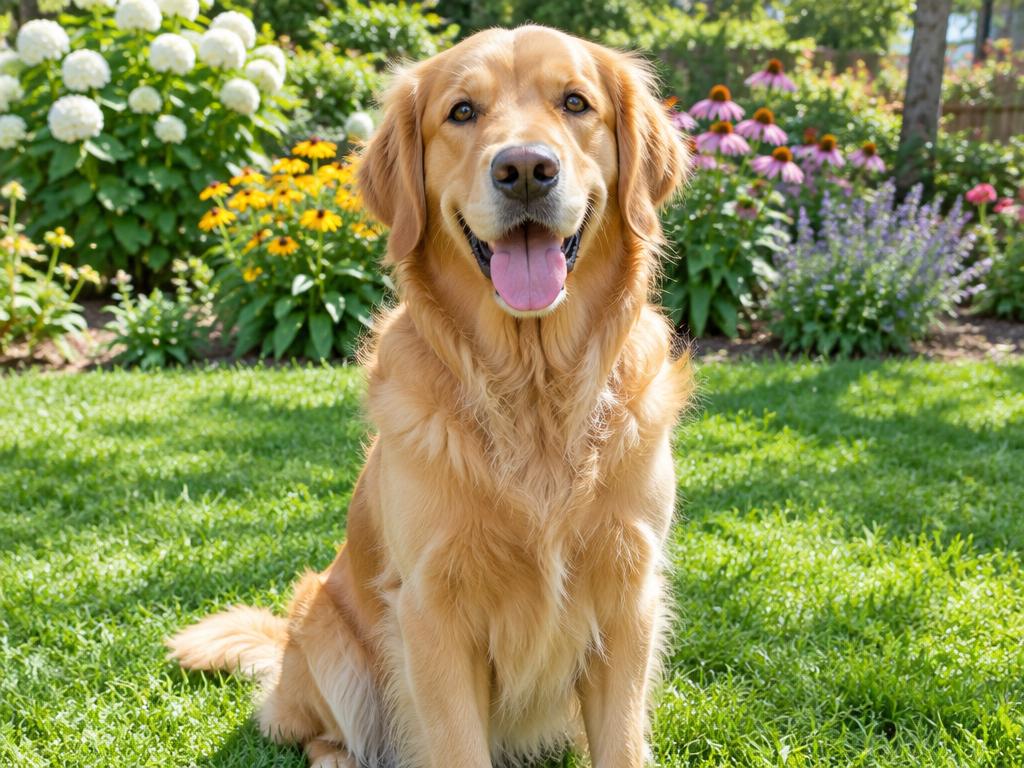
“Turn this photo into a hand-painted watercolor illustration — visible brush strokes, soft color washes, paper texture. Keep the dog’s pose and the composition.”
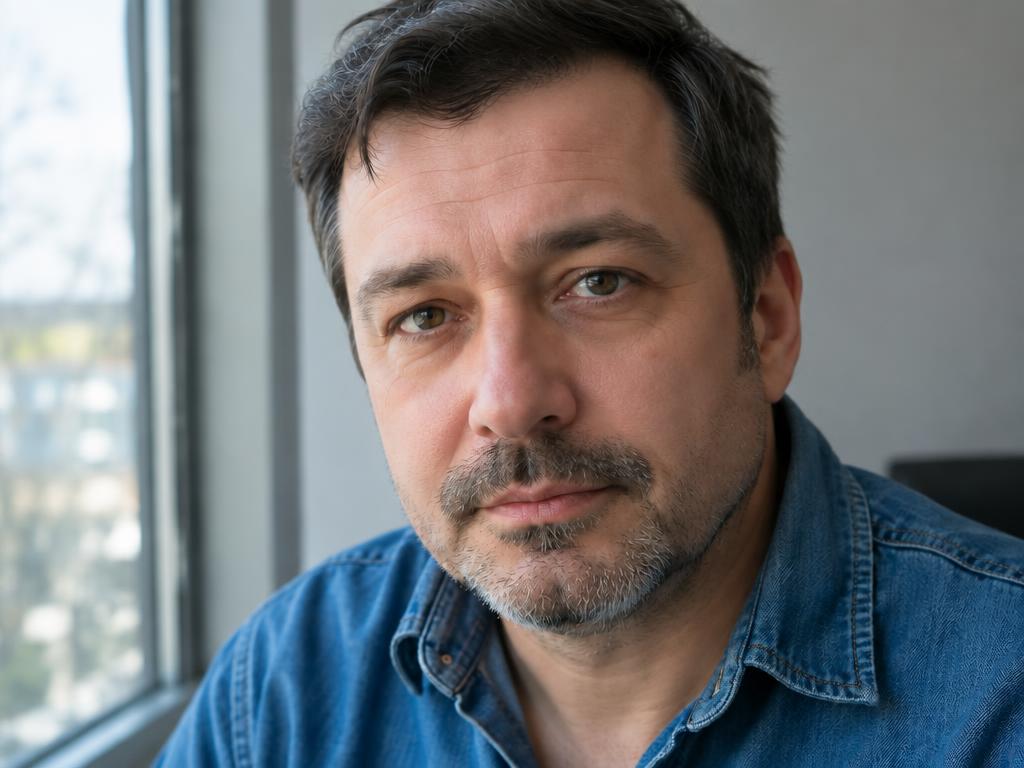
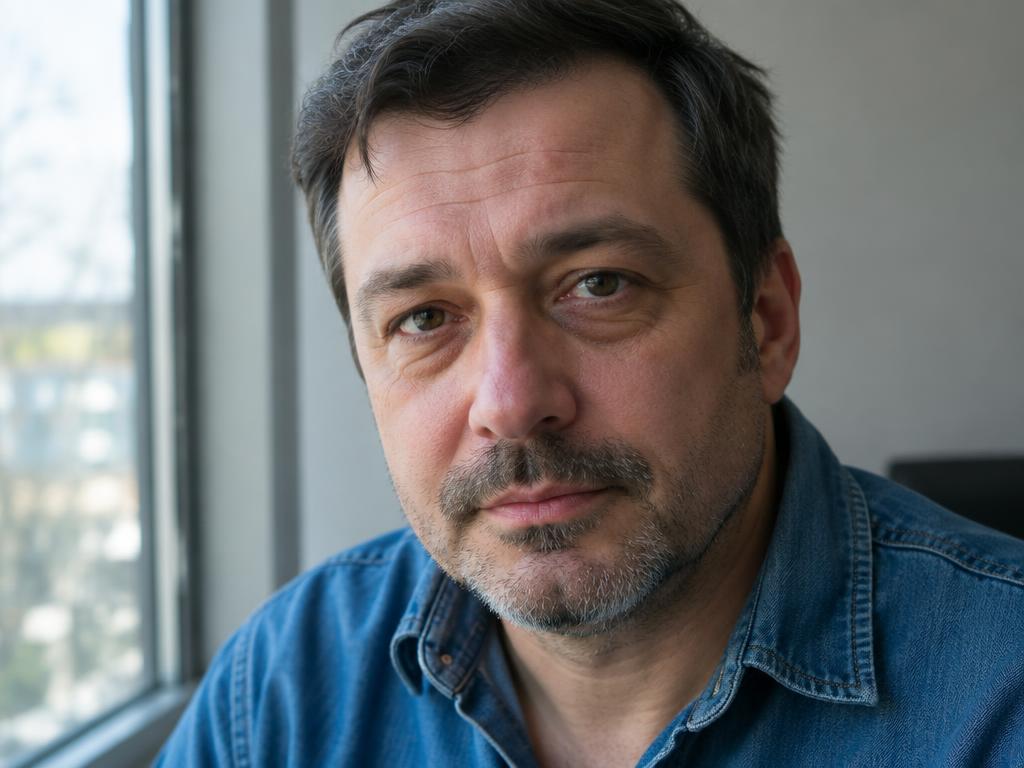
“Gently retouch the skin — even out the tone, reduce the under-eye shadows and remove small blemishes. Keep his expression, features, stubble, and the window lighting exactly unchanged.”
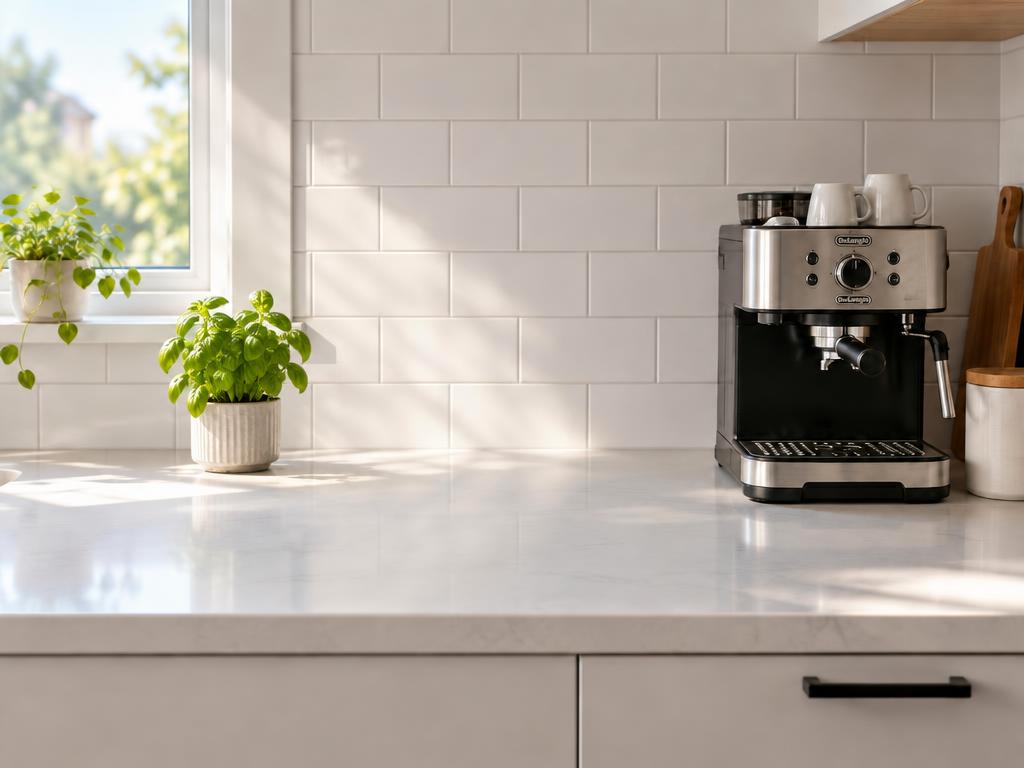
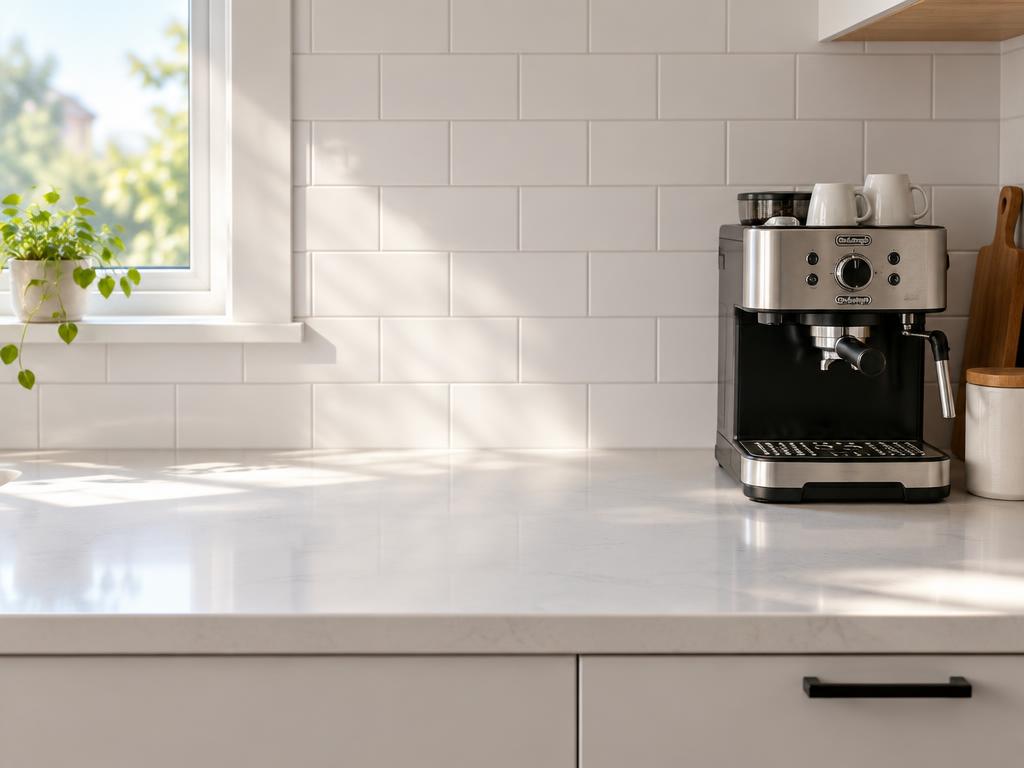
“Add a small potted basil plant on the left side of the counter, matching the morning light and depth of field. Keep everything else exactly unchanged.”
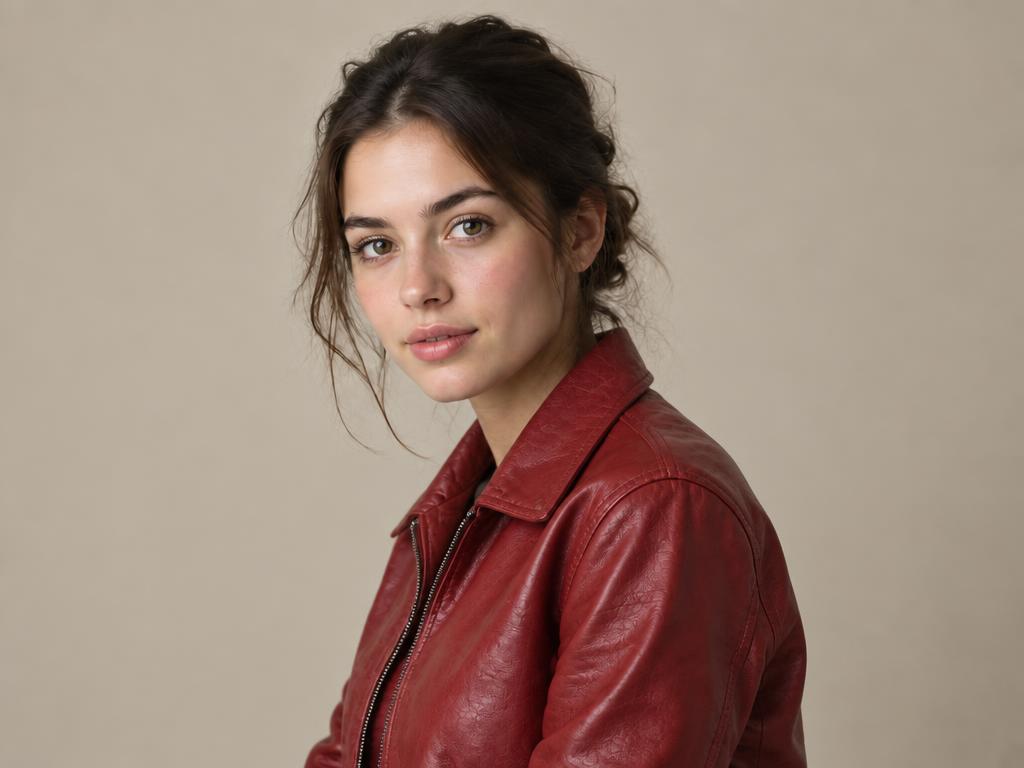
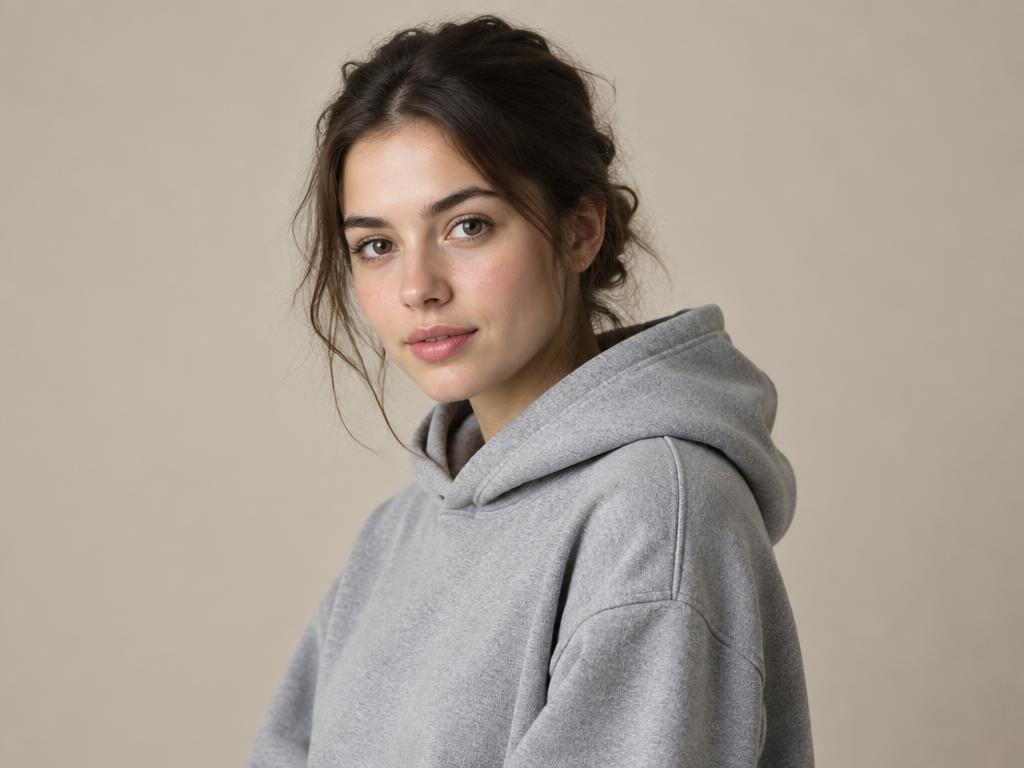
“Change the gray hoodie to a red leather jacket with natural folds. Keep her face, hair, pose and the background identical.”
An AI image editor with prompt input changes an existing photo according to a written instruction — instead of manual selections, layers, or masks. It is not a text-to-image generator: it edits, it does not reinvent. The model rebuilds only what your instruction calls for, while the subject, the framing, and the identity of the photo stay anchored to the original.
ZingPix adds a second control channel on top of the prompt: annotation. Scribble over the object to remove, or pin a numbered marker where an element should land — the model reads the markup as the edit region and keeps the rest anchored to your photo. The prompt says what to do; the annotation says where. Both live in the same form as the generator, so an edit can become a reference for the next one without leaving the page.
One photo, one sentence, three steps.
Drop in a portrait, product shot, or room — one photo per edit keeps the model focused on a single subject. PNG, JPG, or WebP, up to 20MB.
Type the edit in plain English, click a recipe to autofill one, or open the markup editor and scribble a mask where the change belongs. Annotations and instructions combine freely.
Watch the before/after, iterate with another instruction or annotation, then download. Every version is kept in your assets, and any result can become the reference for the next edit.
One edit per generation. “Remove the sign and fix the sky” splits the model’s attention; run two passes instead. Each 1K pass costs 1 credit, and the second starts from the first result.
Name the target precisely. “The man in the red jacket on the left” beats “the guy”. Ambiguity is what makes edits wander — anchor the noun and the location, and the model stops guessing.
Annotate when position matters. The prompt describes what; a mask defines where. For removals and small-region fixes, marking the spot keeps the rest of the photo much closer to the original than a paragraph of directions.
Same editor, four everyday jobs — each card pairs a scenario with the edit that solves it.
Swap cluttered backgrounds for studio backdrops, remove props, add garnish — listings that look reshot, not retouched. One base photo becomes a whole catalog of placements.
Remove lamps, cords, and clutter from room photos, or stage an empty corner with a plant. Buyers read clean rooms as bigger rooms, and each fix takes seconds.
Gentle skin retouching and outfit changes guided by instructions to preserve the person’s appearance. Review facial details before use.
Restyle campaign photos, adapt one shot to many placements, and fix the detail Legal flagged at 6pm. A 1K iteration costs 1 credit; larger resolutions show their fixed cost before you generate.
The model is asked to preserve the person when you request background or accessory edits, but facial details can still change. For sensitive retouching, specify what may change, for example “smooth skin texture only”, and compare with the original.
ZingPix does not add visible or invisible watermarks to downloads on any plan, including free credits. Model providers may embed their own identifiers: Google states that images generated by Nano Banana 2.1 include SynthID, an invisible watermark. Downloads from that model should not be described as watermark-free.
PNG, JPG, JPEG, or WebP up to 20MB, one photo per edit. Output matches your chosen aspect ratio, or the photo’s original framing with “auto.” Available ratios depend on the selected resolution. HEIC photos from iPhones convert automatically on upload.
Your images are processed to create your result and manage your saved assets. Prompts and reference images are sent to third-party AI providers; their processing, training, retention and deletion policies apply to provider-side copies. See our Privacy Policy for details.
Failed renders automatically return their reserved credits in full. Returns may take time to appear; check your credit history for status. Credit returns are separate from cash refunds.
No layers, no masks, no learning curve. Photoshop gives you a thousand tools and asks you to learn them; this editor asks for one sentence instead. For the few jobs that need pixel-level masking, annotations cover the gap.
Yes. Every plan, including free credits, allows commercial use of your edits — listings, ads, client work. You must own the rights to the photo you upload, and you keep ownership of the result. Keep the edit in your assets as a record of how it was made. Commercial use remains subject to applicable law and upstream provider terms; you need the rights and consent for your inputs.
Free credits on sign-up. No credit card required.