
BeforeAfter
Portraits to golden hour
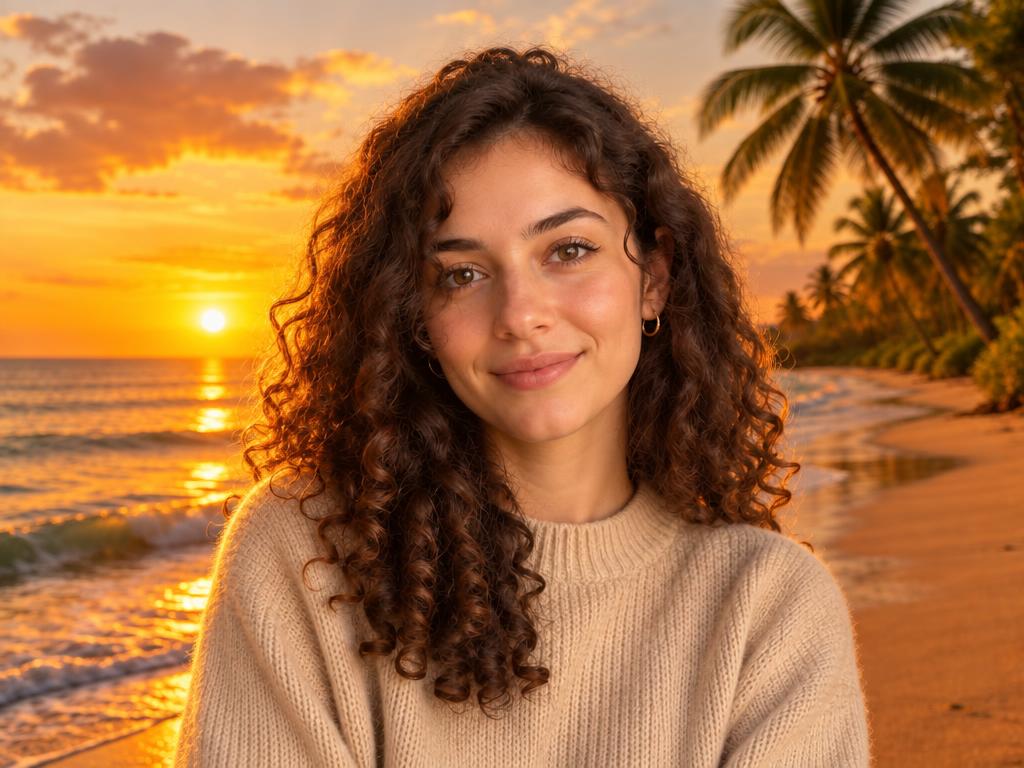
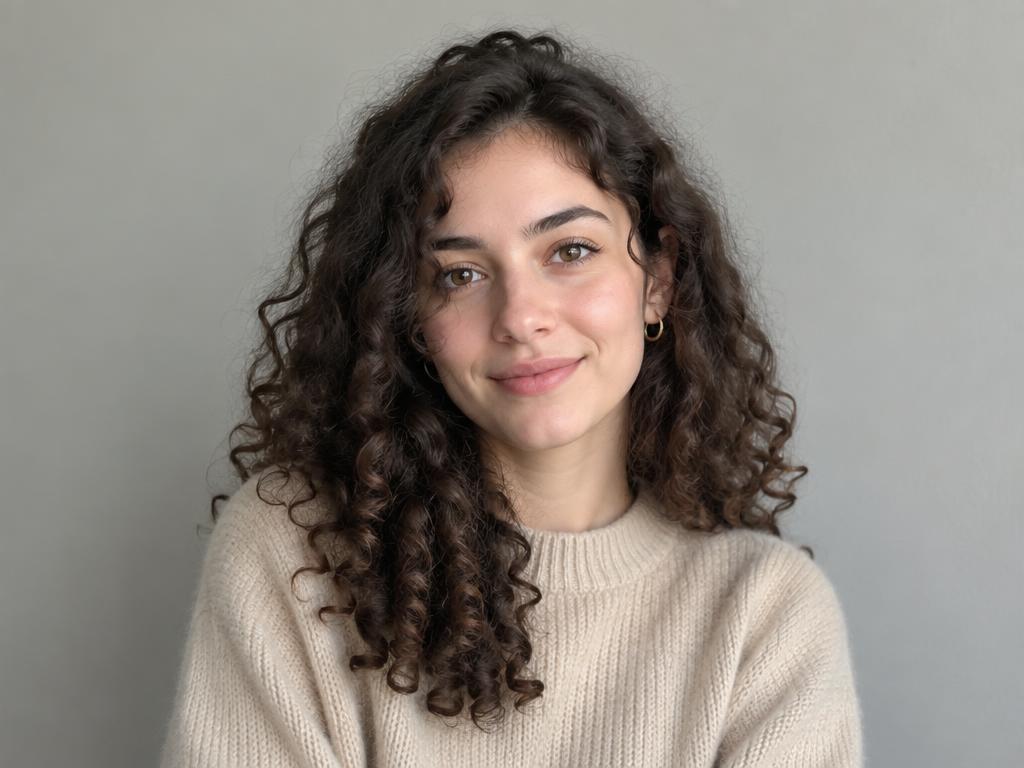
A gray-wall selfie becomes a warm beach portrait, sunset light on the skin.
Our change background of photo tool cuts out your subject and rebuilds the scene around it — matched lighting, natural shadows, no pasted-on edges. Upload your own background image, or just describe the scene you want in words.
Free credits on sign-up · JPG, PNG, WebP · No watermark added by ZingPix
Your next image starts here
Browse promptsEvery pair below came from this page's own pipeline — the original on the left, the AI-blended result on the right. Drag any slider to see how the subject settles into its new scene, light and shadow included. Every result was generated by the same model that will process your uploads.
A gray-wall selfie becomes a warm beach portrait, sunset light on the skin.
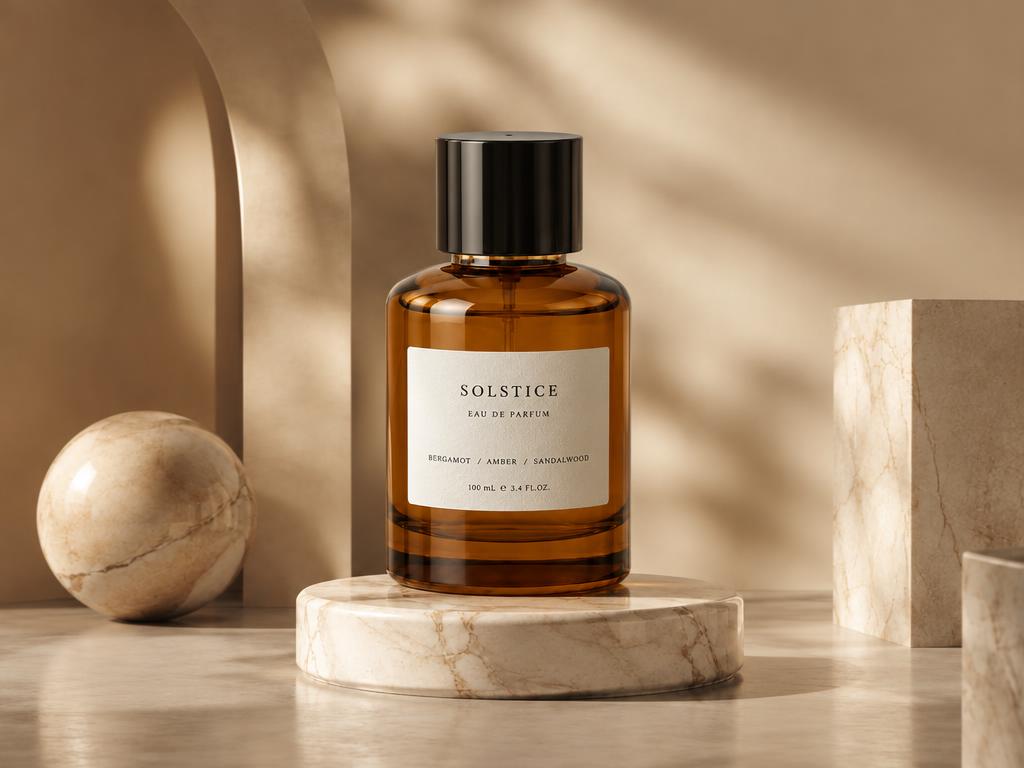
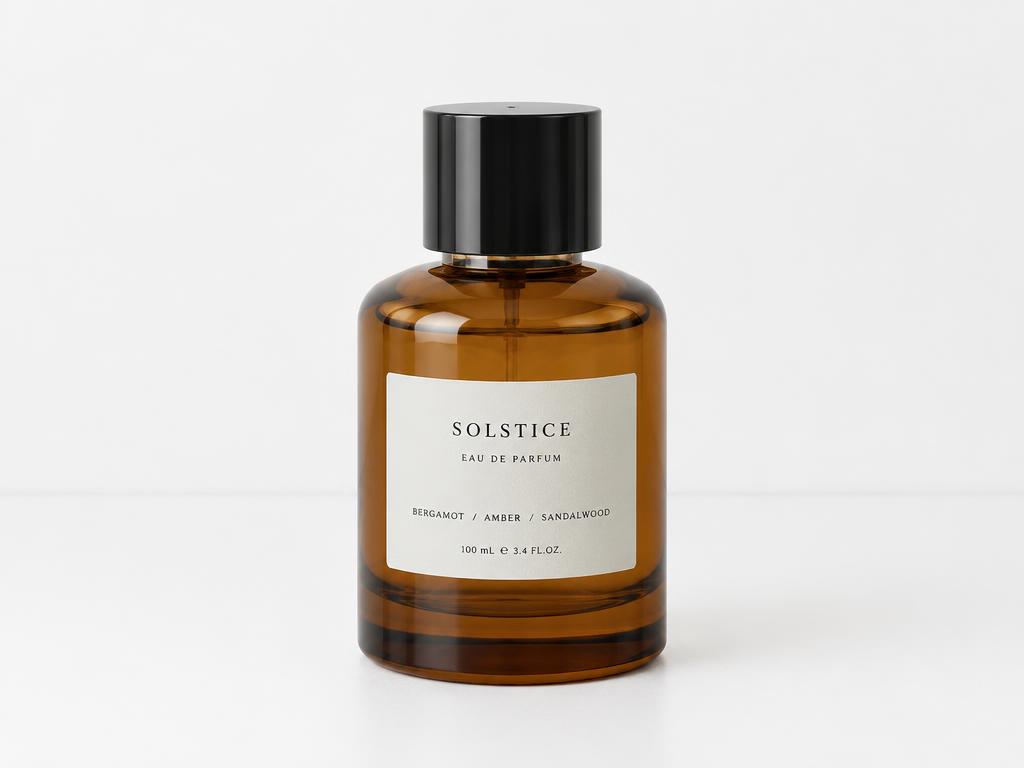
A table-top bottle gains a marble pedestal and soft studio shadows.


A plain headshot turns into a professional, LinkedIn-ready portrait.
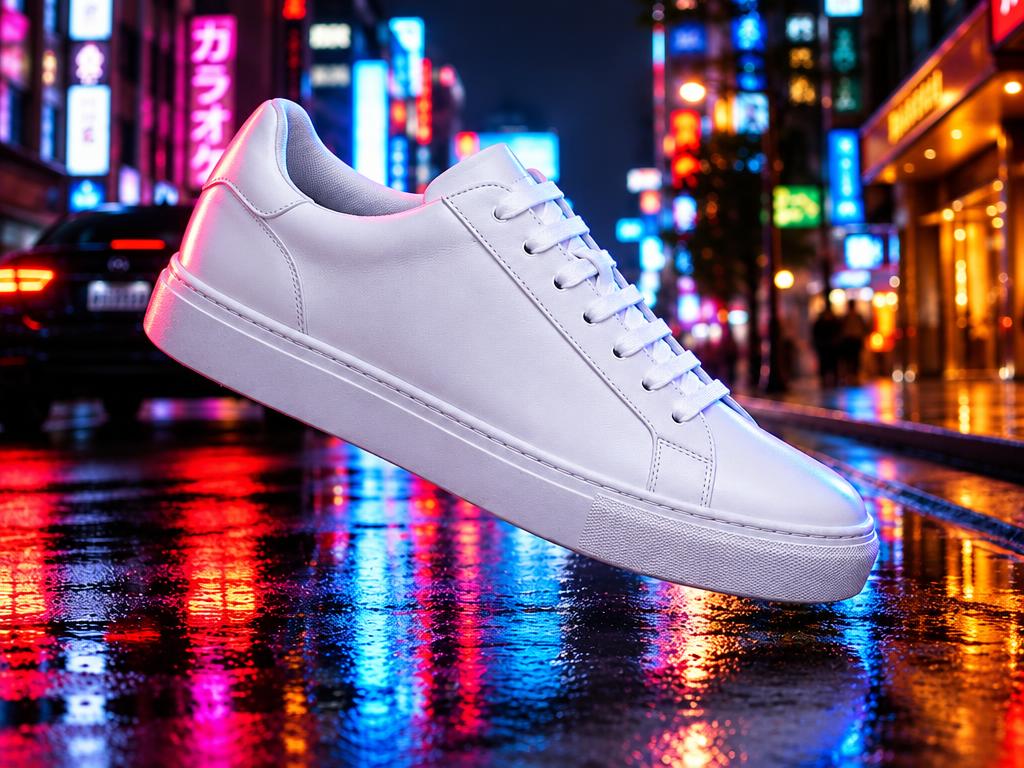
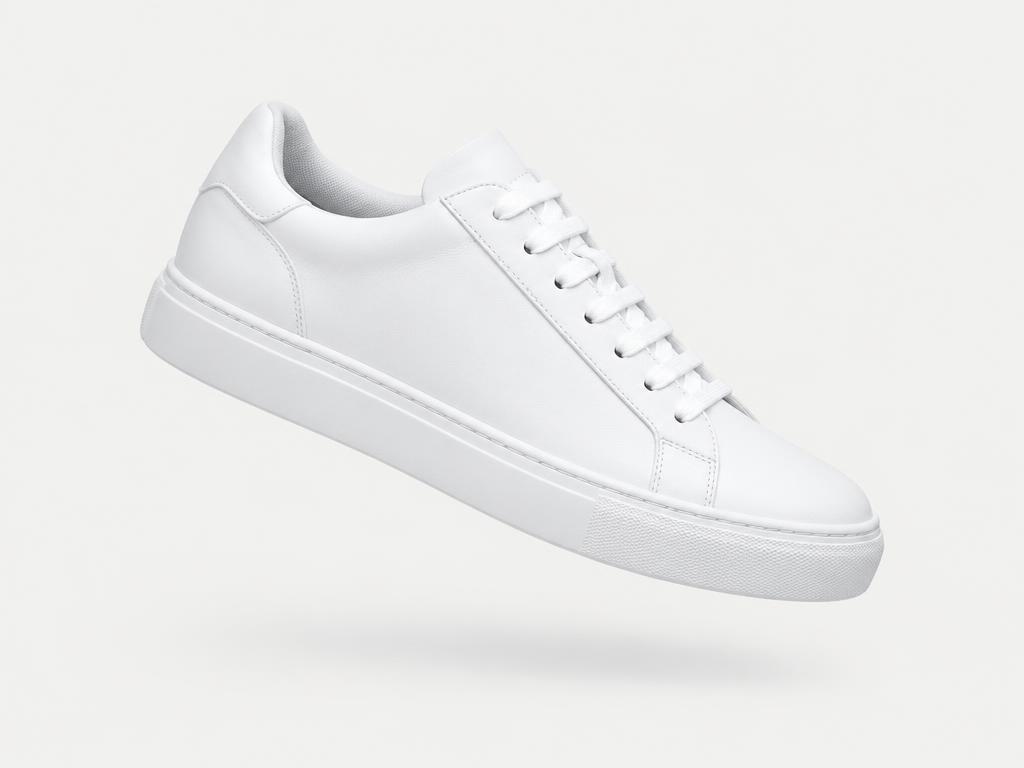
A catalog shoe lands on wet asphalt, neon reflections under the sole.
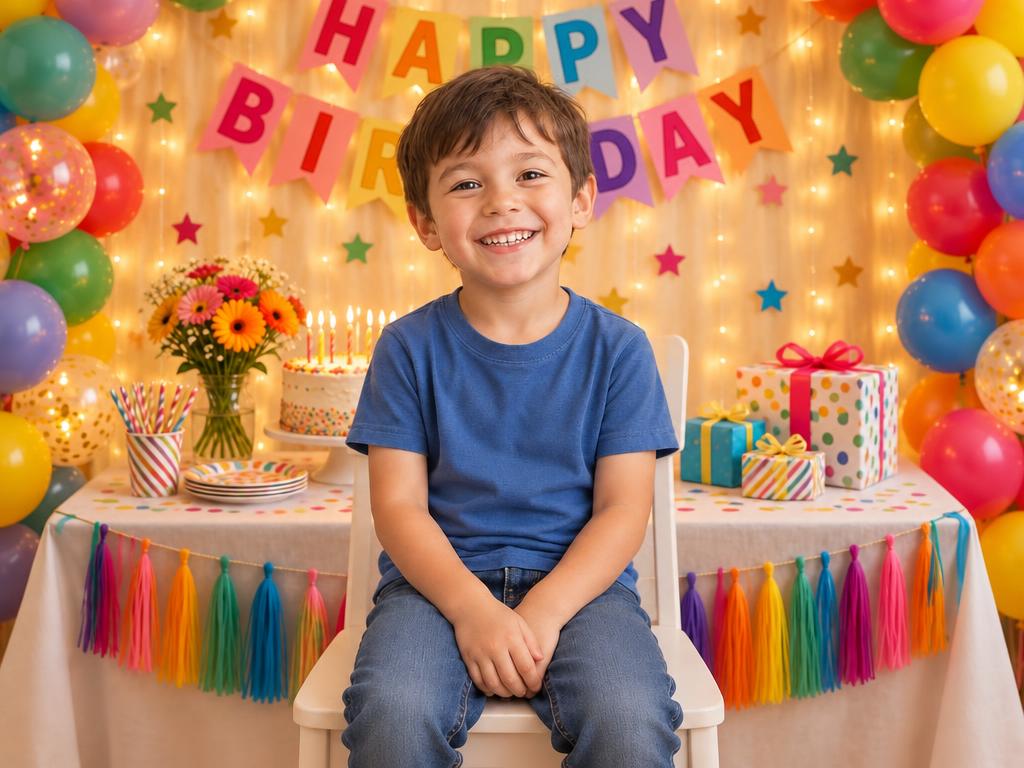

An everyday snapshot becomes a birthday-card photo in one pass.
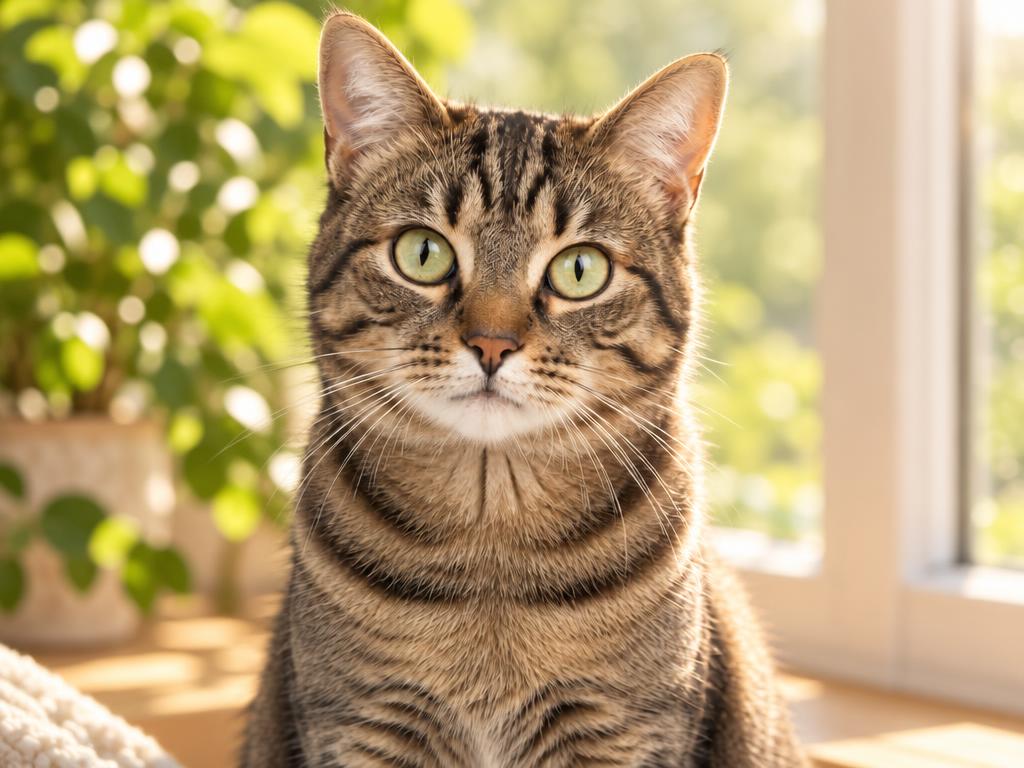
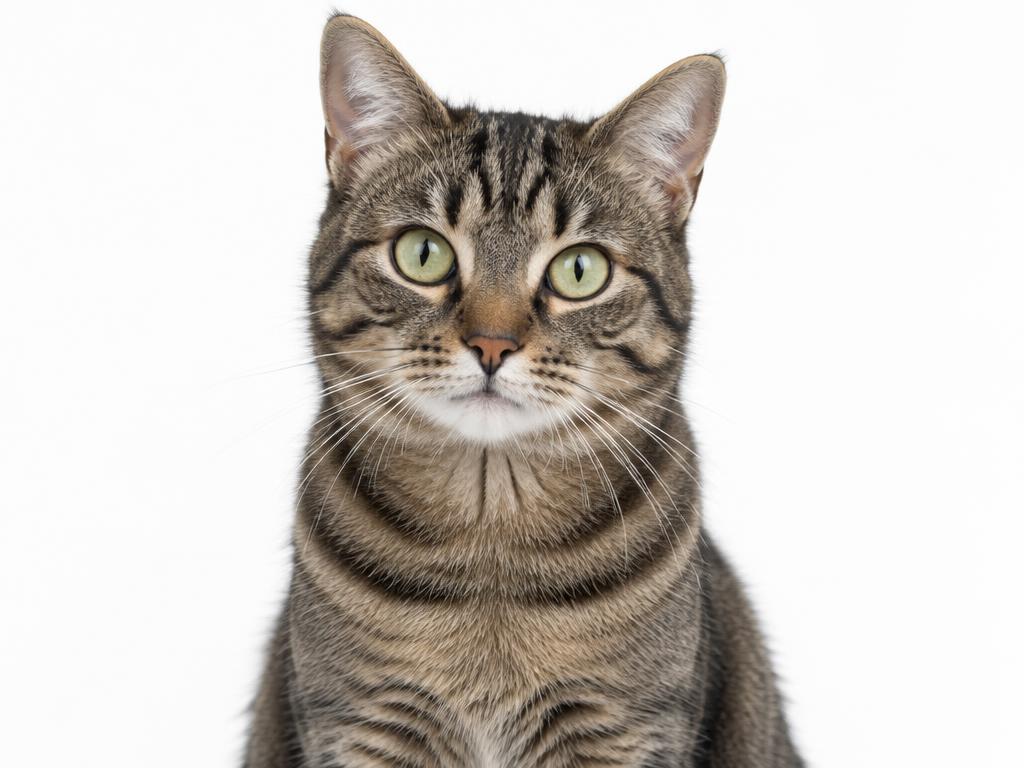
No background image here — “a cozy sunny windowsill” was all the prompt said.
Three steps — no lasso tools, no masking, no Photoshop.
Any clear picture with a subject — a person, a product, a pet. JPG, PNG and WebP are supported from any phone or computer, one photo per result. Drag it in, tap to browse, or paste straight from the clipboard.
Upload your own background image for an exact match, or write what you want — “white studio with soft shadows” — and let the AI build the scene around your subject. Both modes use the same relighting engine under the hood.
The result arrives in about ten seconds, edges and shadows included, at up to 4K resolution. ZingPix adds no watermark on any plan, ready for listings or frames. Compare it against the original with the built-in slider before you save.
Clear subjects on plain backgrounds cut out cleanest — busy scenes work too, they just give the model more to untangle.
Background images with visible light direction blend best; the model matches that light onto your subject.
Selling online? Ask for “pure white background” with 2K output — that is the Amazon and Shopify standard.
Have a backdrop in mind? Upload it. Only have the idea? Describe it.
Maximum control: any photo can be the backdrop — a studio wall, a sunset beach, your own storefront. The AI relights your subject to match that exact scene.
No background image handy? Write what you want — “pure white background, soft shadows” — and the AI generates the whole setting around your subject.
Relight and blend, not cut and paste.
Flyaway hairs, fur and glass edges stay intact. The model redraws boundaries instead of tracing them, so nothing looks scissored out of the original shot. Even lace, bicycle spokes and curly hair survive the move.
Your subject is relit to sit inside the new scene — light direction, color temperature and contact shadows all follow the backdrop you chose.
Presets are fine; yours is better. Upload the exact backdrop you need — a venue, a store wall, a brand color — and keep full control of the result.
From quick social posts to marketplace listings and framed prints, pick the resolution that fits the job. Lines and edges stay sharp at every size.
Six everyday jobs this tool quietly finishes.
White-background compliance and lifestyle scenes for the same product, from one photo.
Turn a living-room selfie into an office-backdrop portrait worthy of LinkedIn.
Fresh scenes for the same subject keep feeds varied without a reshoot.
Holiday photos and party pictures with backdrops that match the occasion.
Etsy and eBay photos that look studio-shot, made at the kitchen table.
Put your cat on the moon. We won't judge, and neither will the AI.
The AI regenerates the scene around your subject, aiming to match the new backdrop’s light, color and shadows while preserving the subject’s pose, expression and framing. AI edits can change other details; review the result.
Yes — new accounts receive free credits on sign-up, and a 1K result costs 1 credit. You can try several backdrops before deciding on a paid plan for 2K or 4K output. Failed generations are refunded automatically. These rates apply to Flare and Sunburst; Seedream costs 2 credits per image and supports up to 2K. Nano Banana 2.1 costs 3, 5 or 7 credits at 1K, 2K or 4K; the generator shows the total before submission.
Yes — that is exactly what the second upload slot is for. Any photo works: a studio wall, a beach, your storefront. If you don't have a backdrop handy, describe the scene in the guidance box and the AI builds it around your subject instead.
Type “pure white background” in the guidance box, or upload a plain white backdrop image. For marketplace listings, choose 2K output so product edges stay crisp when buyers zoom in. The same trick works for any solid color — just name it.
That is where generative blending earns its keep. The model redraws the boundary instead of cutting along it, so flyaway hairs, fur and glass rims keep their fine detail instead of getting chewed into hard zigzags.
Upload JPG, PNG or WebP from any device, phone or desktop. Downloads are high-quality images that marketplaces, print shops and social platforms all accept. Most people upload straight from their camera roll and print from the same device.
Your images are processed to create your result and manage your saved assets. Prompts and reference images are sent to third-party AI providers; their processing, training, retention and deletion policies apply to provider-side copies. See our Privacy Policy for details.
Every plan, including free credits, permits commercial use, subject to applicable law and upstream provider terms. You must have the rights and consent needed for your inputs and review outputs before publishing. See our Terms of Service.
Upload a picture, bring a backdrop or just describe one, and see the blend in seconds — free credits are waiting. No design skills required.