
AI Photo Editing Prompts & Examples
Copyable AI photo editing prompts for background swaps, retouching, object removal, outfits, products, style changes and real before-and-after examples.
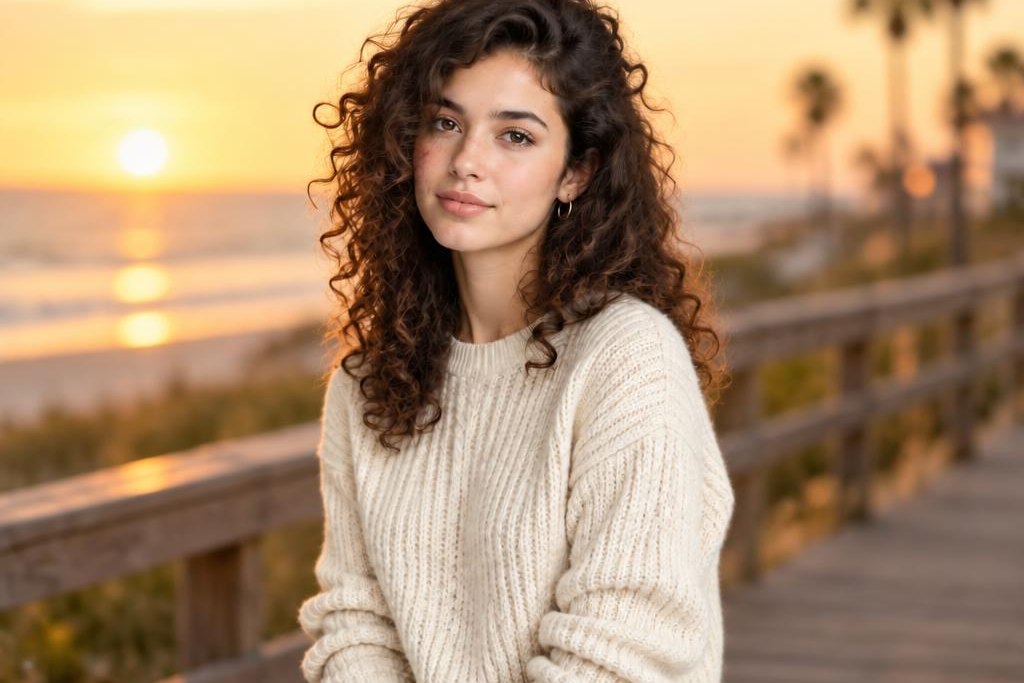
AI photo editing prompts are instructions for changing an existing photo without starting from a blank canvas. Upload a photo, choose the edit you want, replace the bracketed details, and run the result in ZingPix's AI image editor. This guide keeps the workflow focused on photos you already have: backgrounds, people, clothes, products, lighting, objects, and restoration.
Every successful generation or edit uses credits. ZingPix shows the current cost before you run the task, and failed tasks are refunded under the current service rules. The examples below are starting points, not promises of pixel-perfect preservation; image models can still change nearby details, so review every result before delivery. The same AI photo editing prompts can work across several photo types when you replace the variables with details from the image in front of you.
Start here: choose a photo edit
The best AI photo editing prompts are specific about the change and conservative about everything else. Start with an action verb such as replace, remove, brighten, recolor, restore, or restyle. Name the exact object or region. Describe the new look with concrete details, then mention the light, perspective, texture, or identity that should remain close to the source. This is different from an image-generation prompt: the model already has a composition to work from. Use these AI photo editing prompts as a checklist for the boundary of the edit, not as a request to redraw the whole frame.
A reliable structure for AI photo editing prompts
Use this short formula whenever you are writing AI photo editing prompts:
[Action] [the specific object or region] into [the desired result].
Match [lighting, perspective, texture or shadow].
Keep [identity, pose, framing, colors and proportions] as close to the source as the model allows.
Do not add unrelated objects or change the overall composition.
The bracketed words are variables, not instructions to leave in the final prompt. Replace them with details from your photo. “Replace the background” is a starting point; “replace the background with a warm gray studio wall, soft window light from the upper left, and a subtle floor shadow” gives the editor a scene, a light direction, and a reason for the subject to look grounded. Well-written AI photo editing prompts stay concrete even when the desired style is expressive.
For a small local change, keep the prompt short. For a background swap or product scene, include the fill and the light. For a compound request, run two focused edits instead of asking for a background, outfit, color grade, and object removal in one sentence. Each additional edit is another generation and uses credits, but smaller steps make it easier to see which instruction caused a drift. Keep a small library of AI photo editing prompts for the tasks you repeat most often, and label each AI photo editing prompt by the photo type it fits.
AI photo editing prompts for background replacement
Background prompts work best when the subject is clearly visible and the replacement scene has an obvious light direction. These AI photo editing prompts name the scene, perspective, and shadow instead of relying on “make it look professional.” Use AI photo editing prompts for backgrounds when the new scene needs to look photographed with the subject, not placed behind it afterward.
Background replacement
Clean studio backdrop
Best for: Portraits, headshots, and product photos with a distracting room behind the subject.
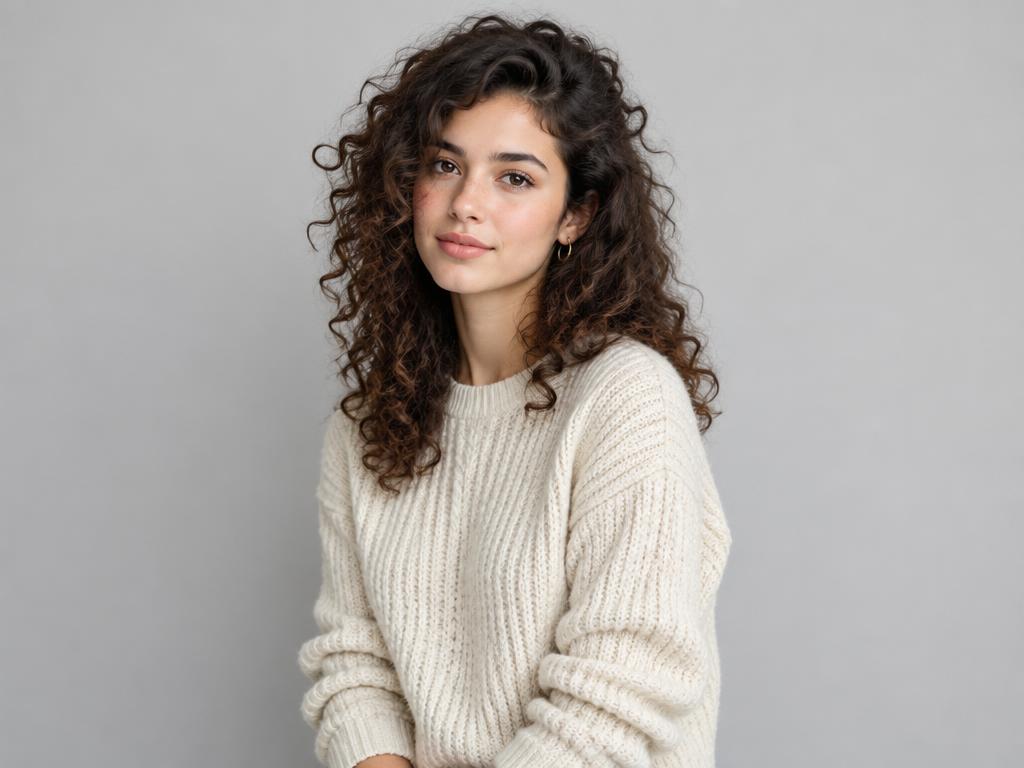
Replace the background with a clean warm-gray studio wall and a simple matte floor. Use soft three-point lighting from the front-left and a gentle contact shadow beneath the subject. Keep the subject's identity, pose, clothing, proportions, and camera angle as close to the source as the model allows. Do not add props or text.Replace: [background], [light direction], [shadow type]
What to expect: A controlled studio setting with a believable shadow and a light direction that agrees with the original subject.
Background replacement
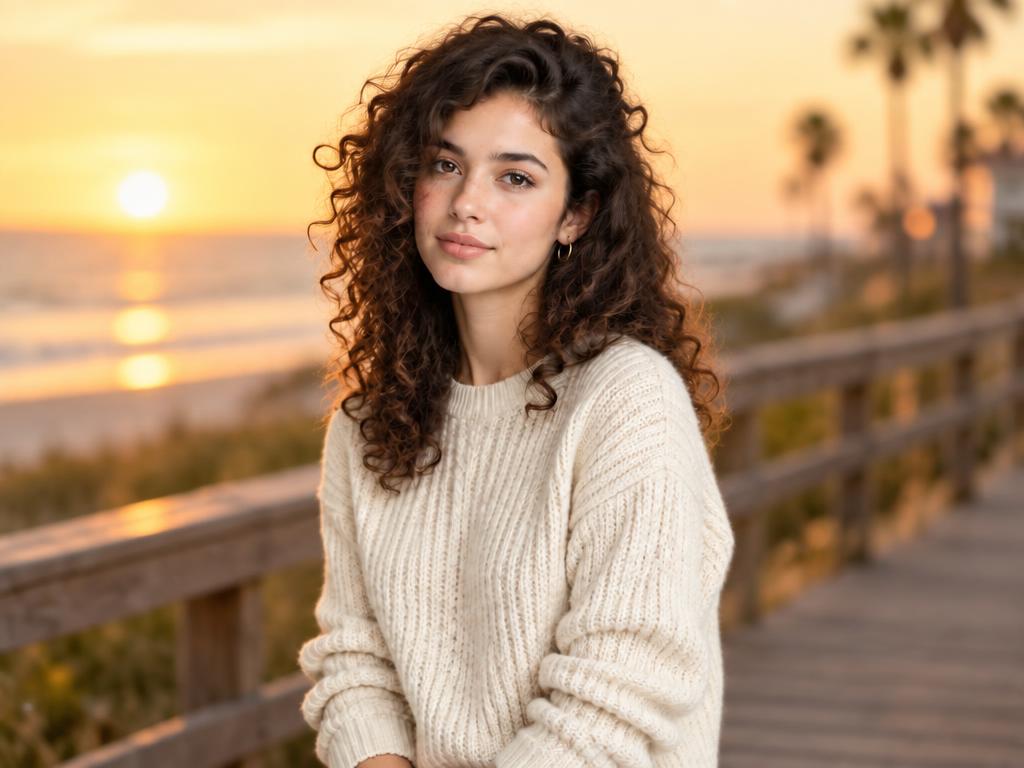
Golden-hour location swap
Best for: Travel portraits and lifestyle photos where the subject should move into a different place.
Replace the background with a quiet Mediterranean coast at golden hour: pale stone, a low orange sun near the horizon, and a soft sea haze. Match the warm rim light to the existing light on the subject and keep the camera perspective consistent. Keep the face, expression, pose, outfit, and body proportions as close to the source as the model allows.Replace: [location], [time of day], [haze or atmosphere]
What to expect: A scene change that feels integrated rather than pasted behind the person. Check hair edges and transparent accessories at full size.
AI photo editing prompts for object removal
Object-removal AI photo editing prompts need two descriptions: what disappears and what should fill the empty space. Include the object’s position and the surface behind it. Vague requests often leave repeated textures, shadows, or a smear where the object used to be. The most useful AI photo editing prompts for removal describe the fill as carefully as the object being removed.
Portrait AI photo editing prompts work best when they describe a light touch and a limited area instead of asking for a new face.
Object removal
Remove a person at the frame edge
Best for: Street, event, and travel photos with a bystander that distracts from the main subject.
Remove the bystander in the red jacket at the right edge of the frame. Reconstruct the brick wall, sidewalk, and continuing shadow behind them, matching the existing perspective, grain, and light direction. Keep the main subject, foreground objects, framing, and colors as close to the source as the model allows. Do not repeat bricks or create a blur patch.Replace: [object and clothing], [location], [background surface]
What to expect: A continuous background instead of a blurred block. If the removed object overlaps hair, glass, or a hand, expect to review the edge and run a smaller follow-up edit if needed.
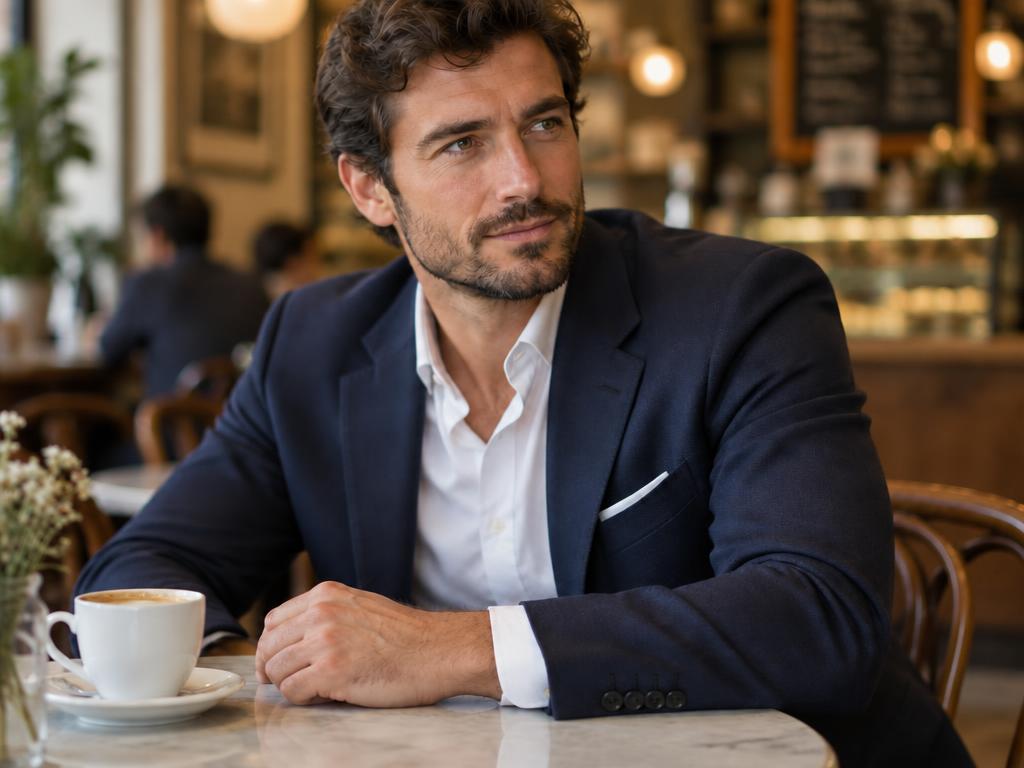
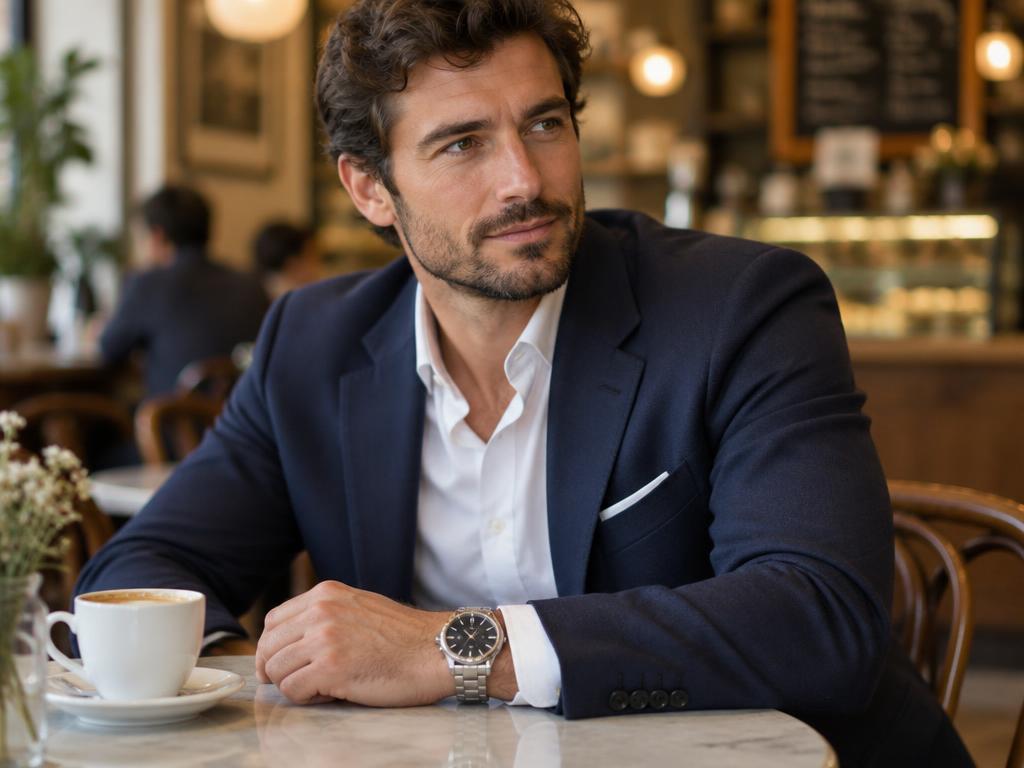
For a new subject or prop, use Add Objects to Photo instead of describing the object as if it were already in the source. That page is designed for a main photo plus an object reference.
AI photo editing prompts for portrait retouch
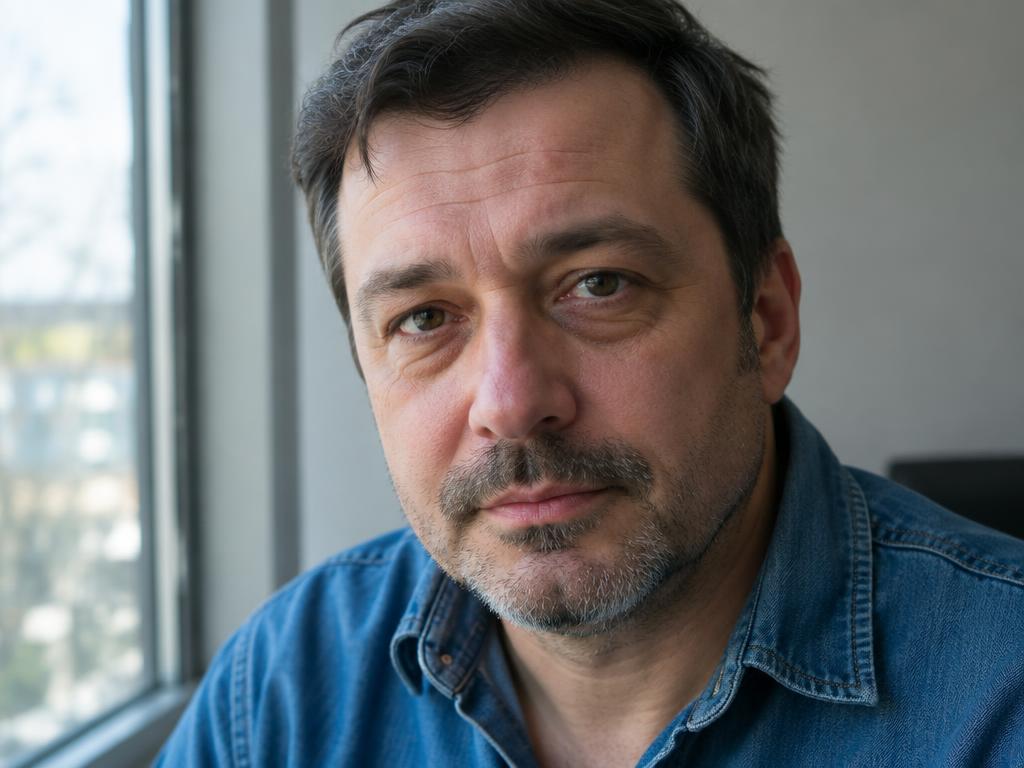
Good portrait AI photo editing prompts ask for a lighter touch. Say what to reduce, then protect pores, expression, facial proportions, and natural color. “Perfect skin” is too broad and often produces plastic texture.
Portrait retouch
Natural skin cleanup
Best for: Portraits with a few temporary blemishes, flyaway hairs, or uneven under-eye shadows.
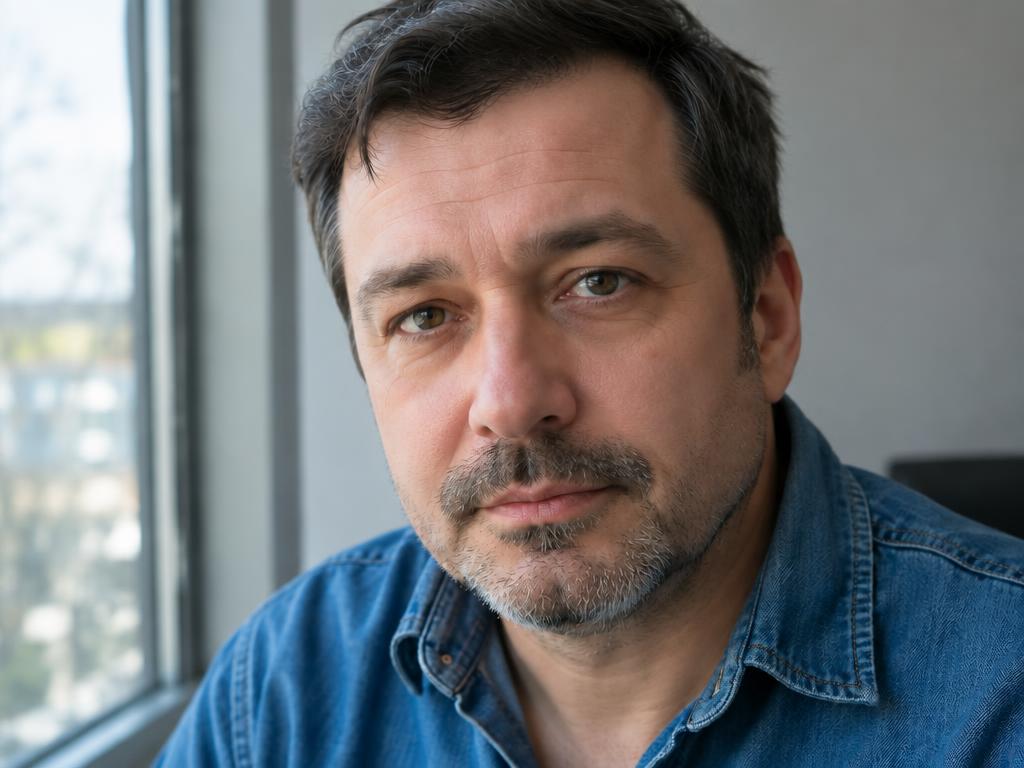
Lightly retouch the blemishes on the cheek and chin, reduce small under-eye shadows, and remove a few stray flyaway hairs. Keep pores, freckles, natural skin texture, facial features, expression, eye shape, and skin tone natural. Do not reshape the face, change age, whiten the skin, or alter the lighting.Replace: [areas to retouch], [temporary detail], [amount of change]
What to expect: A cleaned-up portrait that still looks like the person in the source. Compare the eyes, mouth, skin texture, and hairline before delivery.
AI photo editing prompts for outfit and color changes
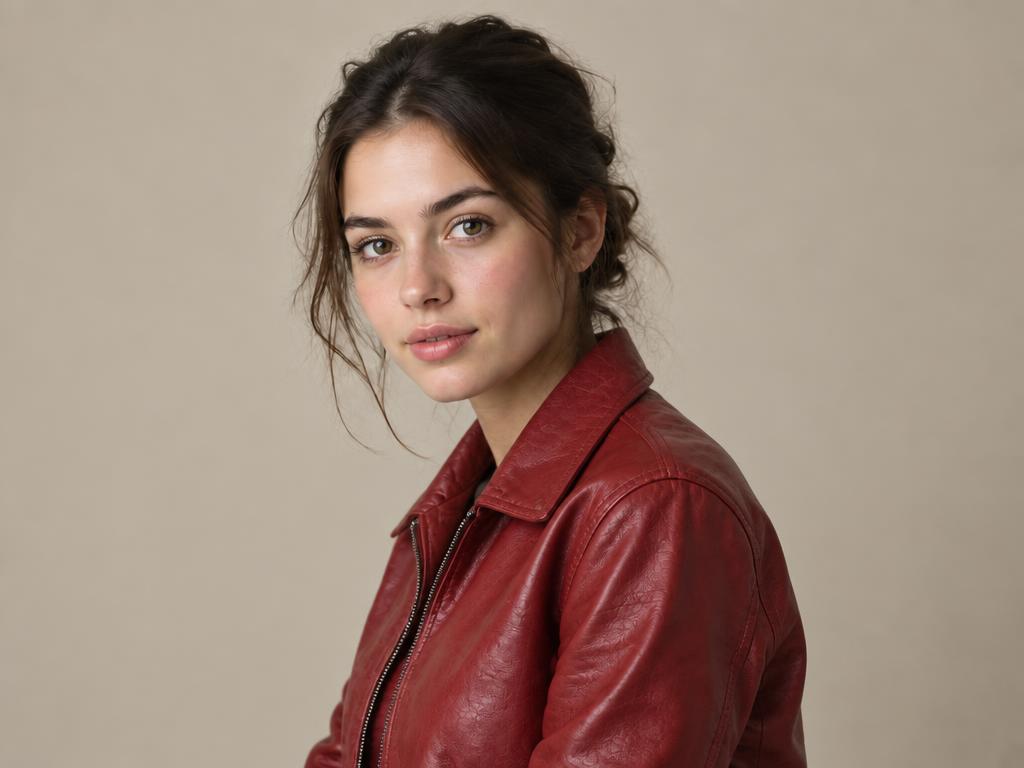
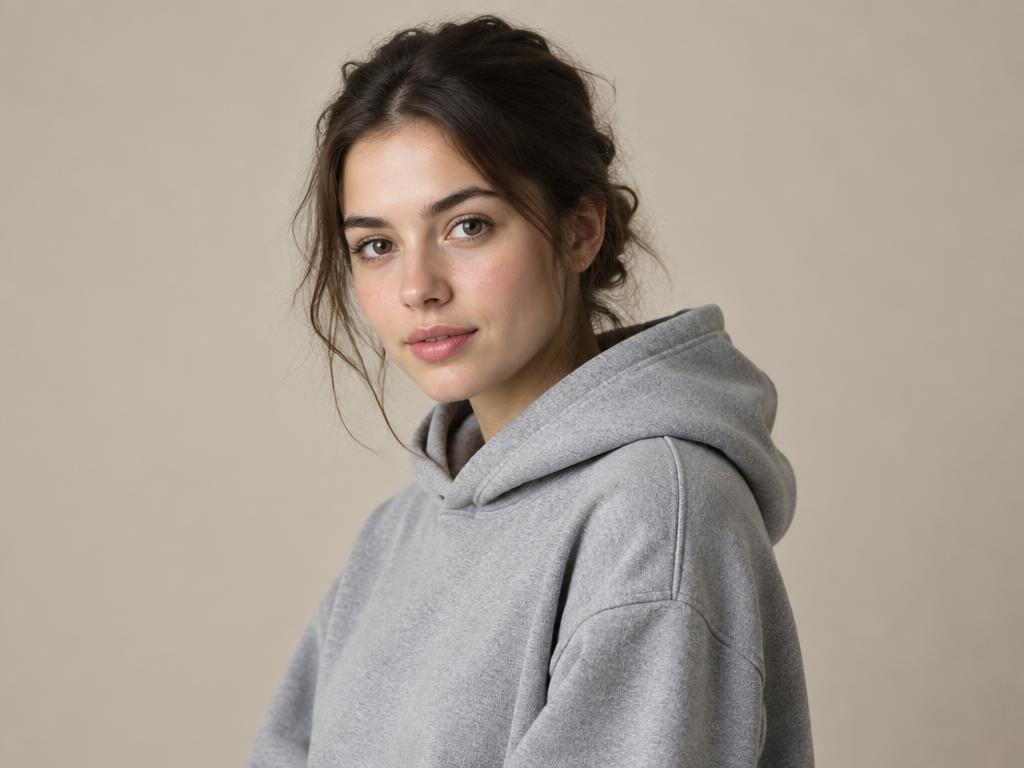
Outfit AI photo editing prompts should specify material, fit, color, and visible details. Lock the face, body proportions, pose, and background so the clothing change does not become a new portrait. These AI photo editing prompts are most reliable when the new garment is described like a real styling brief.
Outfit and color
Change a garment without changing the person
Best for: Portraits, fashion tests, and profile photos where the clothing needs a new color or material.
Replace the outfit with a tailored charcoal wool suit, a crisp white shirt, and a slim black leather belt. Match the existing body pose, fabric folds, camera angle, and light direction. Keep the face, hairstyle, expression, body proportions, hands, and background as close to the source as the model allows. Do not add jewelry or change the framing.Replace: [garment], [color], [material], [fit]
What to expect: A wardrobe variation that follows the original pose and lighting. Clothing edges, hands, and overlapping hair deserve a close inspection.
AI photo editing prompts for product photos
Product AI photo editing prompts need platform context. A pure white marketplace background, a lifestyle scene, and a social post each need different framing and negative space. Protect the product shape, label, logo placement, and color instead of saying only “make it commercial.” Good AI photo editing prompts for products name the channel before they name the decoration.
Product photos
Marketplace-ready product background
Best for: Product photos that have a cluttered room or inconsistent background.
Place this product on a clean pure-white e-commerce background with even studio lighting and a soft natural drop shadow underneath. Keep the product shape, proportions, surface color, label placement, and logo recognizable. Match the original camera angle and do not invent extra product parts or change any text.Replace: [platform], [background], [shadow]
What to expect: A cleaner listing image with the product still recognizable. Always proofread packaging, small text, and logos after the edit.
AI photo editing prompts for lighting and color
Lighting AI photo editing prompts describe direction and quality, not just “brighter.” Include the side of the light, the softness of the shadow, and the palette you want. This is a global edit, so do not promise that every local detail will remain identical. Use AI photo editing prompts for lighting when you want a mood change without asking for a new composition.
Lighting and color
Warm cinematic grade
Best for: Travel, lifestyle, and editorial photos that need a stronger mood without a new composition.
Apply a warm cinematic color grade with amber highlights, rich but natural shadows, slightly lifted blacks, and subtle film grain. Add a soft directional glow from the left and keep the subject's skin tone believable. Preserve the framing, pose, main colors, and overall composition as close to the source as the model allows.Replace: [palette], [light direction], [grain level]
What to expect: A clear mood shift that still belongs to the original photograph. Check skin tone and highlight detail before exporting.
AI photo editing prompts for style transfer
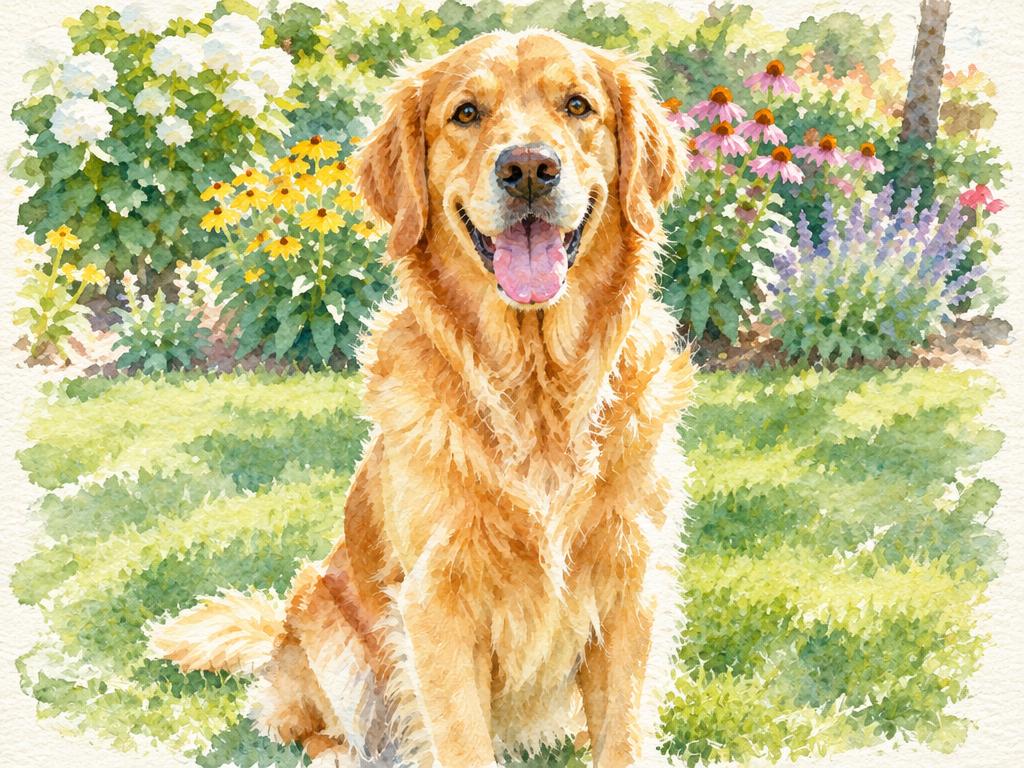
Style-transfer AI photo editing prompts work better with a concrete visual reference than with a stack of adjectives. Name the medium, palette, texture, and edge behavior, then state that the subject should remain recognizable. The strongest AI photo editing prompts give the style a reference point and the source photo a boundary.
Style transfer
Editorial film treatment
Best for: Portraits and street photos that need a coherent visual treatment rather than a full redraw.
Apply a Kodak Portra 400-inspired editorial film treatment: warm skin tones, muted saturation, soft highlight rolloff, subtle grain, and slightly faded blacks. Keep the subject recognizable, preserve the pose and framing, and keep the lighting direction consistent with the original photo. Do not add props or change the setting.Replace: [film or medium], [palette], [texture]
What to expect: A recognizable photo with a new color and texture language. If the edit changes identity or composition, shorten the request and run the style pass separately.
AI photo editing prompts for old-photo restoration
Restoration prompts need a historical guardrail. Repair scratches, creases, missing areas, and faded color, but preserve the period grain, lighting, clothing, and facial character. “Modernize” is a different request and should be stated separately. AI photo editing prompts for restoration should name the era or texture you want to protect.
Old-photo restoration
Repair damage without modernizing the photo
Best for: Scanned family photos, faded prints, and early digital images with physical damage.
Restore this vintage photograph by removing scratches, creases, stains, and small tears, then rebuild missing details naturally. Preserve the original period grain, contrast, lighting, clothing, facial character, and softness. If colorizing, use restrained period-appropriate colors and avoid a glossy modern palette. Do not change the composition.Replace: [damage], [color treatment], [period reference]
What to expect: A cleaner archival copy that still belongs to its era. Review faces, hands, text, and repaired edges for invented detail.
AI photo editing prompts for adding objects
Adding an object is a compositing task. Describe the new object, its exact location, its scale, and the shadow it should cast. If you have a separate object photo, use Add Objects to Photo so the reference can be supplied directly. AI photo editing prompts for additions are more useful when they explain depth order and light, not only the noun being added.
Add objects
Add a prop that belongs in the scene
Best for: Desk, room, product, and lifestyle photos where a real object reference should be inserted.
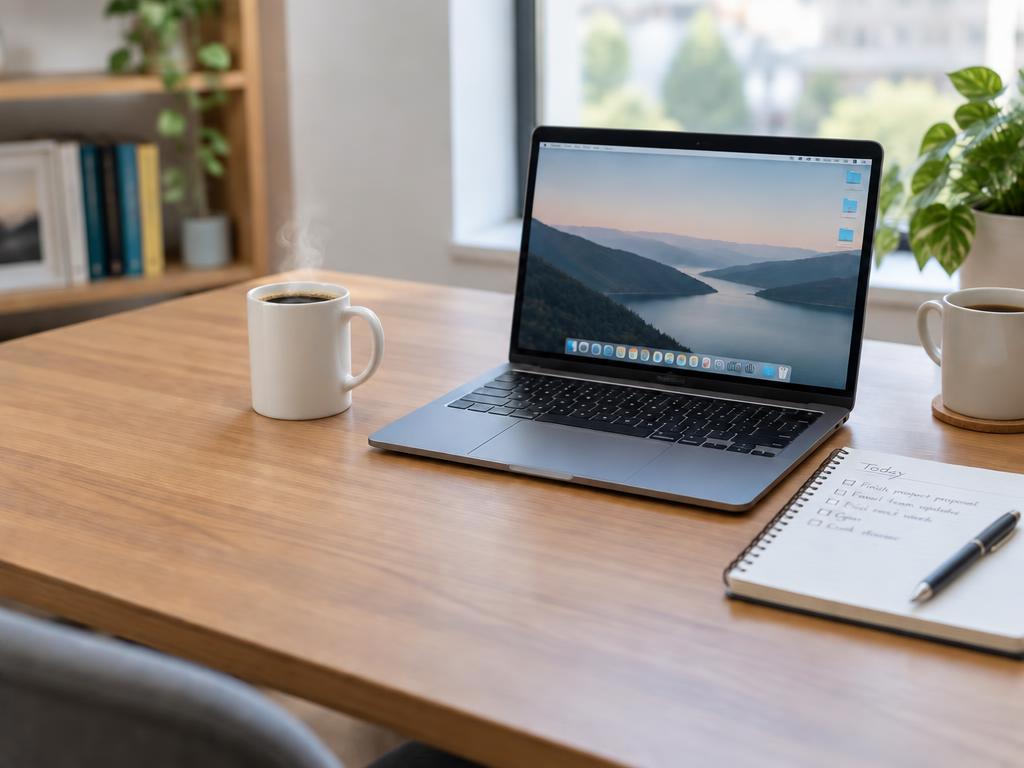
Add a small ceramic mug on the left side of the desk, behind the notebook and in front of the lamp. Match the mug's scale, perspective, material highlights, contact shadow, and the warm morning light already in the scene. Keep the existing desk objects and composition as close to the source as the model allows. Do not add extra props.Replace: [object], [location], [depth order], [light]
What to expect: A placed object with a believable scale and shadow. For a real reference photo, open the dedicated add-objects workflow instead of describing every detail from memory.

Common failures and practical fixes
The most common failure is an instruction that describes the desired mood but not the boundary of the edit. Replace “make this better” with an action, a named object, a location, and a concrete result. If the model changes a face during a background swap, reduce the request to the background and add a keep list for identity, expression, pose, and framing. This helps, but it is guidance rather than a pixel-level guarantee. These AI photo editing prompts are designed to reduce ambiguity, not to promise that a generative model will never touch a neighboring detail.
If an object removal leaves a smear, describe the material behind it: brick wall, wood grain, sidewalk, or fabric weave. If a background replacement looks pasted on, state the light direction, shadow softness, and perspective. If an outfit edit changes hands or hair, isolate the wardrobe request and inspect the result before attempting a color grade. If a compound instruction still drifts, split it into two successful edits and review the credit cost before each run. That repair loop is what makes AI photo editing prompts useful in a real production workflow.
For text, logos, faces, hands, glass, and hair, treat the result as a draft that needs review. The strongest AI photo editing prompts reduce ambiguity; they cannot replace a human check of the final file. Only edit photos you own or have permission to edit, especially portraits, family archives, documents, and client work.
Frequently asked questions about AI photo editing prompts
What are AI photo editing prompts?
They are short instructions that tell an image model how to change an existing photo. AI photo editing prompts describe the change, the target area, the desired result, and what should stay close to the source. These AI photo editing prompts are useful because they turn a vague edit into a checkable brief. In other words, AI photo editing prompts translate a visual decision into instructions the model can follow.
How are editing prompts different from image-generation prompts?
Generation prompts create a new composition from text. AI photo editing prompts start with an uploaded image, so they need a boundary: what to change, what to preserve, and how the new detail should match the original light and perspective. That boundary is the main reason AI photo editing prompts should not be copied from a from-scratch image prompt.
How long should an editing prompt be?
Most focused edits work in 30–100 words. Use fewer words for a single color change and more detail for a background swap, product scene, or restoration. Avoid adding unrelated goals to one request. Short, specific AI photo editing prompts are easier to review than long descriptions full of conflicting goals.
Does every photo edit use credits?
Yes. Every successful generation or edit uses credits, and the current cost is shown before you run it. Failed tasks are refunded under the current service rules. Switching pages or copying a prompt is free; submitting the edit is the billable action. Keep that rule beside your AI photo editing prompts so a copied template never hides the cost of the actual edit.
Can I use these prompts in ZingPix?
Yes. Copy a prompt, upload your photo in the AI image editor, replace the bracketed variables, and review the displayed cost before running it. Use Add Objects to Photo when you have a separate object reference. Save the AI photo editing prompts that fit your workflow and adapt the variables for the next photo. Over time, those AI photo editing prompts become a compact brief library for your team.
Use these AI photo editing prompts in ZingPix
Start with one clear change, keep the variables concrete, and inspect the result at full size. The article gives you a repeatable editing workflow; ZingPix's AI image editor is where you upload the photo, run the edit, compare versions, and decide what to keep. Return to these AI photo editing prompts whenever the next image needs the same kind of change. The goal is a repeatable result, not a longer prompt, and these AI photo editing prompts are meant to make that workflow easier to repeat. Use the same AI photo editing prompts as a starting brief, then adjust the variable that actually changed in the next photo.