OpenAI image models · Economy, Flare, Sunburst

GPT Image 2.6 Image Generator

Use GPT Image 2.6 to build a picture from a written brief or revise a photo you already have. Choose Economy for fixed-price 1K drafts, Flare for exploring layouts, or Sunburst when details need closer attention. ZingPix is an independent workspace powered by Kie.ai.

Sign in to generate · Economy costs 4 credits per image

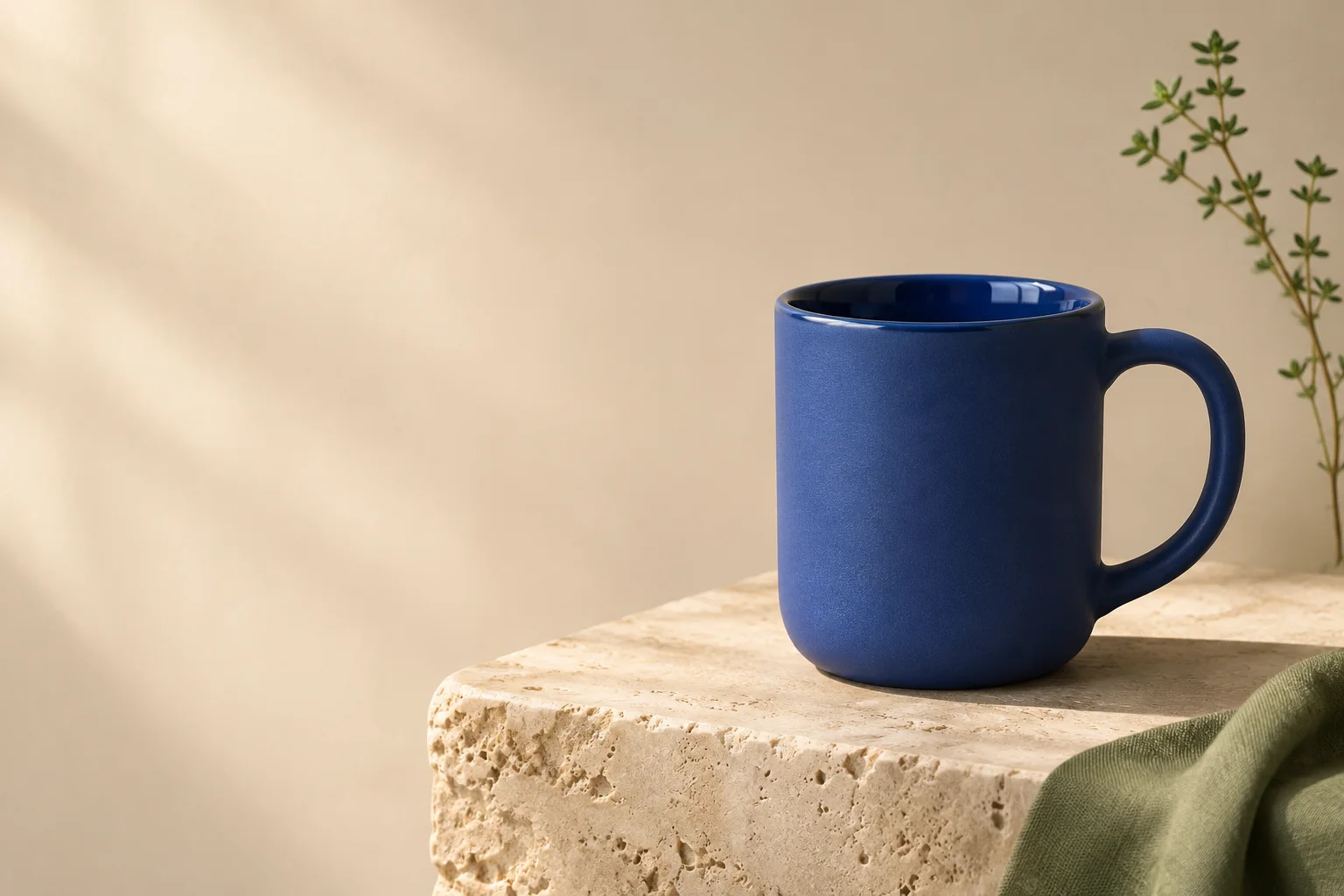
Matte blue ceramic mug on an ivory ledge, with empty space on the left
A product banner composition with room for a headline. AI-generated concept illustration. Not a verified ZingPix model output.

Create or edit with GPT Image 2.6

Your next image starts here

Browse prompts
ExampleExampleExampleExampleExampleExampleExampleExampleExampleExampleExample

Which GPT Image 2.6 model should you choose?

Start with the constraint that matters most: a predictable cost, room to try several compositions, or careful preservation of details. All three GPT Image 2.6 options use the same workspace, so you can keep the brief and references while comparing approaches.

Economy · Fixed-price 1K

Use GPT Image 2.6 Economy for a thumbnail, storyboard frame or early product mockup. It produces a 1K PNG, and the site charge stays at 4 credits whether you start with text or add references. Pick it when you are judging the idea rather than preparing a larger deliverable.
Flare · Explore the layout

Choose GPT Image 2.6 Flare for quick iterations on framing, color and placement. Try the same banner brief in a wide and a square crop, then compare the space around the subject. Flare supports 1K, 2K and 4K where your plan allows, with the final charge based on usage.

Sunburst · Refine the details

Try GPT Image 2.6 Sunburst when small details carry meaning, such as bag hardware, a character's clothing, or the hierarchy on a poster. Give it a clear reference and name the features that should survive an edit. Review the result against the original rather than assuming every detail stayed the same.

How to use GPT Image 2.6 for generation and editing

A useful GPT Image 2.6 brief gives the model something to draw and tells it how the result will be used. Start with the steps below, then change one variable at a time so you know what improved the image.

  1. Write for the placement

    Tell GPT Image 2.6 the subject, placement, materials and light. If the image will sit behind a headline, specify which side needs clean space. Describe the crop in the brief and select the aspect ratio in the generator; a wide banner and a vertical story need different framing.

  2. Give each reference a role

    For a GPT Image 2.6 edit, upload the source first. If you attach a second image for color or lighting, say so explicitly. For example, take the bag from image 1 and use image 2 only for background color. Do not ask the model to guess which reference defines the product.

  3. Preview at a sensible size

    Use a 1K draft to check composition before spending credits on a larger GPT Image 2.6 output. If the layout works, choose a supported 2K or 4K option for the next run. A larger image gives you more pixels, but cannot fix an incorrect label, missing object, or poorly framed subject.

  4. Inspect, then make one change

    Review the output at the size people will see it. Check spelling, faces, edges, object counts and any details the brief asked GPT Image 2.6 to preserve. If the background is right but the product changed, start from the original reference again and narrow the instruction to the background.

GPT Image 2.6 showcases and practical prompts

Use the following briefs as starting points, then replace the subject or wording with your own. These illustrations show the intended composition and edit scope. They do not compare model speed or prove that GPT Image 2.6 will reproduce the exact images.

GPT Image 2.6 prompt for a product banner

The mug illustration above shows how a brief can reserve space for a headline. Ask GPT Image 2.6 for the photograph alone, then add your real copy and logo in an editor. This keeps pricing and offer text editable when the campaign changes.

A matte cobalt blue ceramic mug on a warm ivory ledge, with soft window light from the left. Place the mug in the right third. Keep the left half empty for a headline. No printed text or logo.
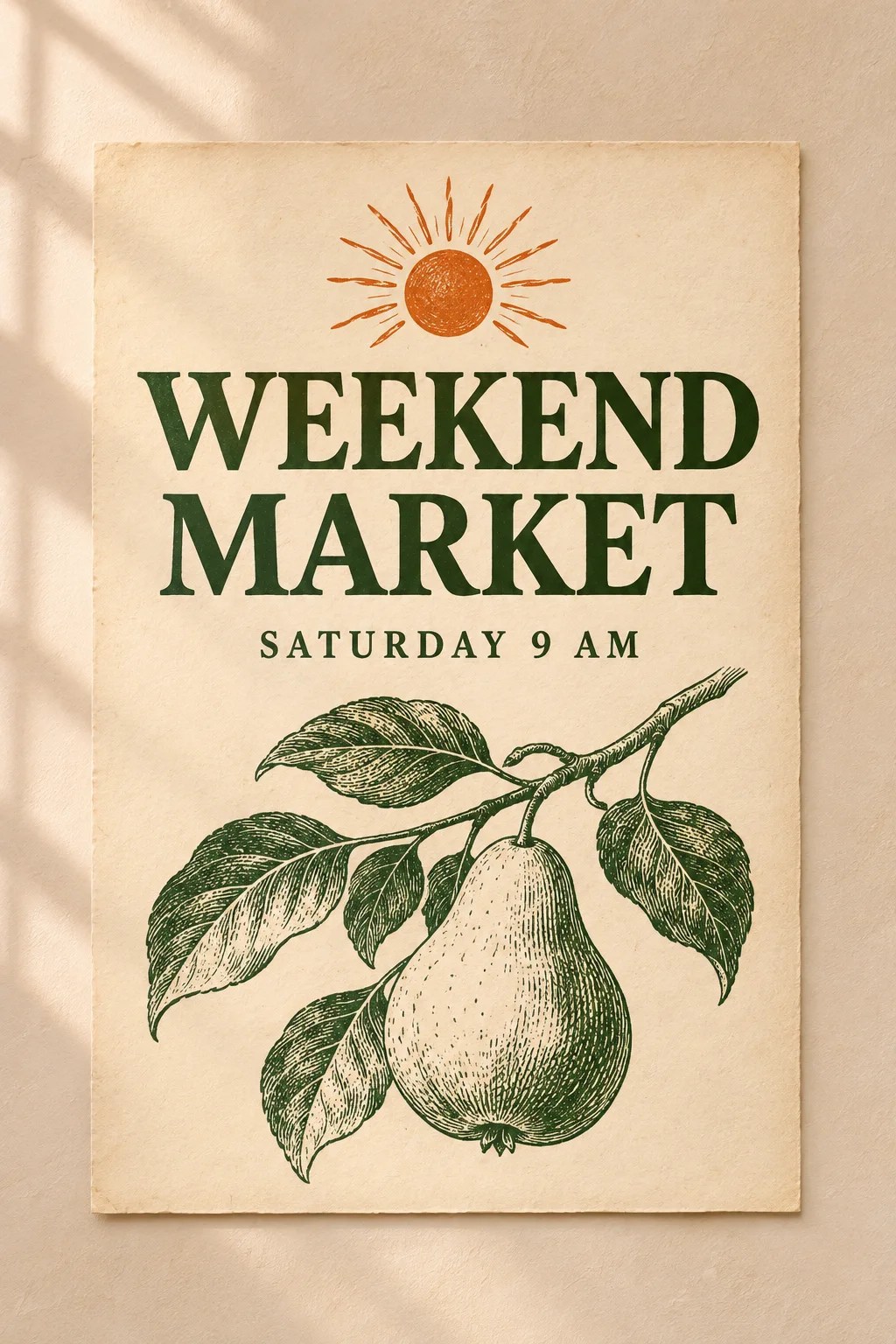
Cream and pine-green market poster with a pear illustration and two text lines
AI-generated concept illustration. Not a verified ZingPix model output.

Design a poster around two lines of text

Give GPT Image 2.6 the exact headline and a short supporting line in quotes. Separate the words from layout instructions, and ask for room around both lines. If a date or price must be correct, inspect every character and typeset critical details separately.

An ivory farmers market poster in dark pine ink. Set “WEEKEND MARKET” as the headline and “SATURDAY 9 AM” beneath it. Place a woodcut pear below the text. Do not add other wording.
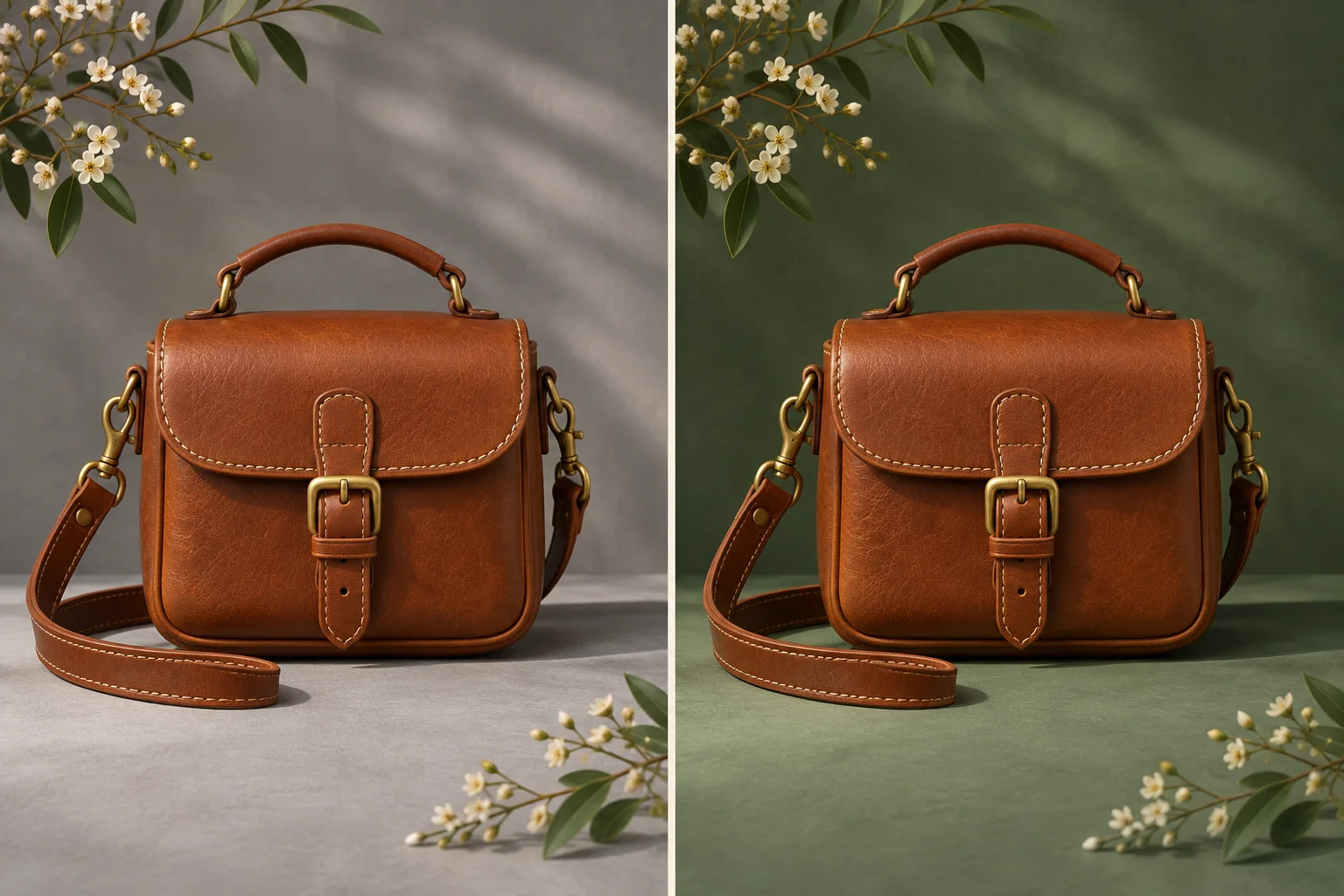
Illustrative leather bag comparison with a gray backdrop on the left and sage on the right
AI-generated concept illustration. Not a verified ZingPix model output.

Change the setting while keeping the subject

A focused edit makes it easier to judge GPT Image 2.6 results. Change the backdrop first, then check the bag's shape, seams and buckle. If the angle shifted or the hardware changed, keep the reference and restate those constraints before making another edit.

Use the bag from image 1. Replace the gray background with muted sage green. Keep the camera angle, silhouette, stitching, and brass buckle. Add only a soft contact shadow below the bag.

How GPT Image 2.6 credits work

Check the quote in the generator before you submit a GPT Image 2.6 task. Economy uses a fixed charge for a successful image. Flare and Sunburst show the maximum credit hold before you start, because the provider reports actual usage after the task runs.

For GPT Image 2.6 Flare and Sunburst, the current maximum holds are 24 credits for 1K, 48 for 2K and 96 for 4K. The hold is deducted at submission and is a ceiling for that request. When the task completes, any part that was not used returns to the original credit grants.
For example, if a GPT Image 2.6 task reports 12 Kie credits, the site multiplies that by 0.70 and rounds the total up to 9. A 24-credit hold would return 15 credits. This illustrates the calculation; an individual prompt or reference edit can use a different amount.

If a paid GPT Image 2.6 task ends in failure, its hold is returned. A task still waiting for provider usage can remain pending while the system retries. Check the task status before resubmitting; a second successful request is a separate generation with its own charge.

Plans and credits

GPT Image 2.6 frequently asked questions

Which GPT Image 2.6 version supports 4K?

Flare and Sunburst offer 1K, 2K and 4K where your plan permits them. Economy is 1K only. Output size and aspect ratio are separate choices: select the shape for your placement, then check the resolution options available for that model.

Can I use GPT Image 2.6 without uploading a photo?

Yes. Use a text prompt on its own for a new GPT Image 2.6 image, or attach images to guide an edit. The shared workspace accepts up to 16 references; individual tools may offer fewer slots. Add only references that provide useful visual information.

Does this GPT Image 2.6 generator export GIF or SVG?

This workspace returns one static PNG per request. OpenAI documents additional formats for parts of its API, but ZingPix does not expose animated GIF, SVG or layered exports here. Plan to assemble animation, editable text or vector artwork in a dedicated editor.

Are reference edits always the same price in GPT Image 2.6?

Economy costs 4 credits per successful image, with or without references. Flare and Sunburst settle against reported provider usage, so two requests at the same resolution can have different final charges. The maximum shown before you submit is what you can be charged.

Can GPT Image 2.6 preserve every original detail?

No. An edit can affect nearby regions or small features beyond the requested change. Keep the original photo, compare important details side by side, and use a more focused instruction if an edit drifts. For exact brand marks or product specifications, verify against the original assets before publishing.

Do I need to switch from GPT Image 2.5?

No. Compare both versions on your own brief instead of switching every workflow at once. Keep the same references, crop and subject, then judge text, layout, edit fidelity and cost. GPT Image 2.6 gives you another option alongside your existing model choices.

Start your next image with GPT Image 2.6

Pick a model, write one clear brief, and check the output size and credit quote before generating. If you already have a source photo, upload it and name the single change you want to try first.